Objects
The Objects section is designed for creating, viewing, and managing objects.
The central area displays the list of objects available to the user. For an end user, the list of objects visible to them is limited: it is either the objects they created in the system themselves, or those they are permitted to observe.

Adding a new object
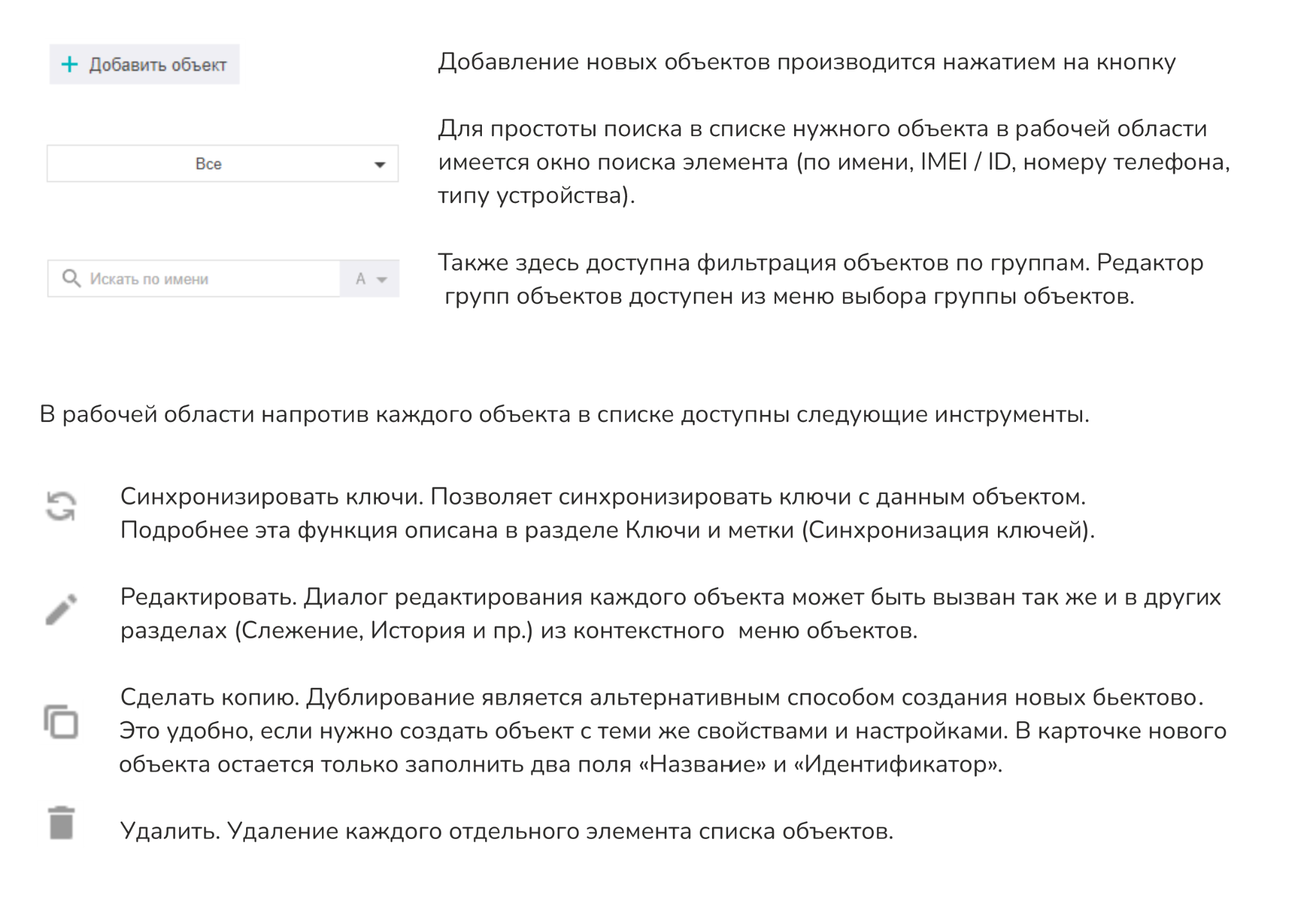
The object edit dialog contains many settings, which are grouped using tabs. Below is information about each tab and explanations of the purpose of the main parameters.
Object properties
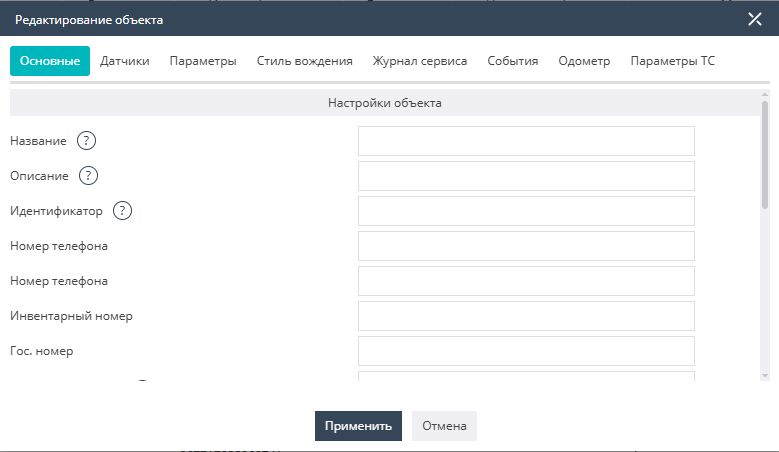
- General
This tab contains general information about the object, such as the object identifier, its name, comment (description), the numbers of the SIM cards installed in it, the state registration number, the model of the installed equipment, and the time zone configured in the device. It also reflects the data for visualizing the object in the system: the icon, track color, group membership, etc.
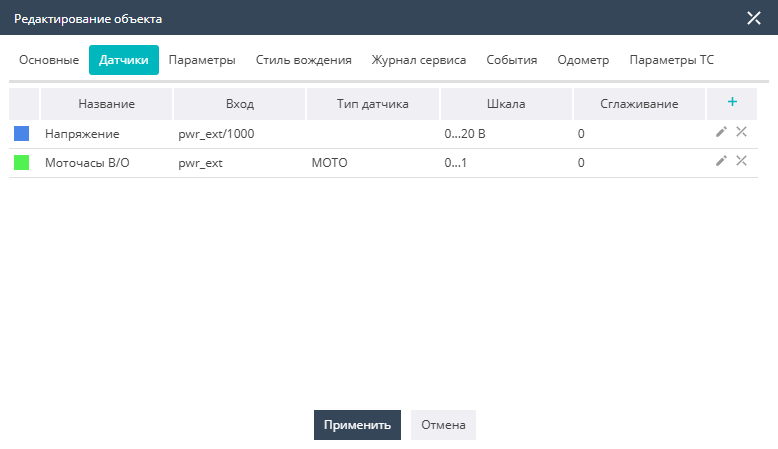
- Sensors
This tab is intended for sensor configuration of the object and contains a list of all previously added sensors, indicating the name, connection type, and other most important information. Obtaining full information about the sensors and editing them is available through the sensor configuration dialog. Sensor configuration is described in more detail below in the Sensor configuration section.
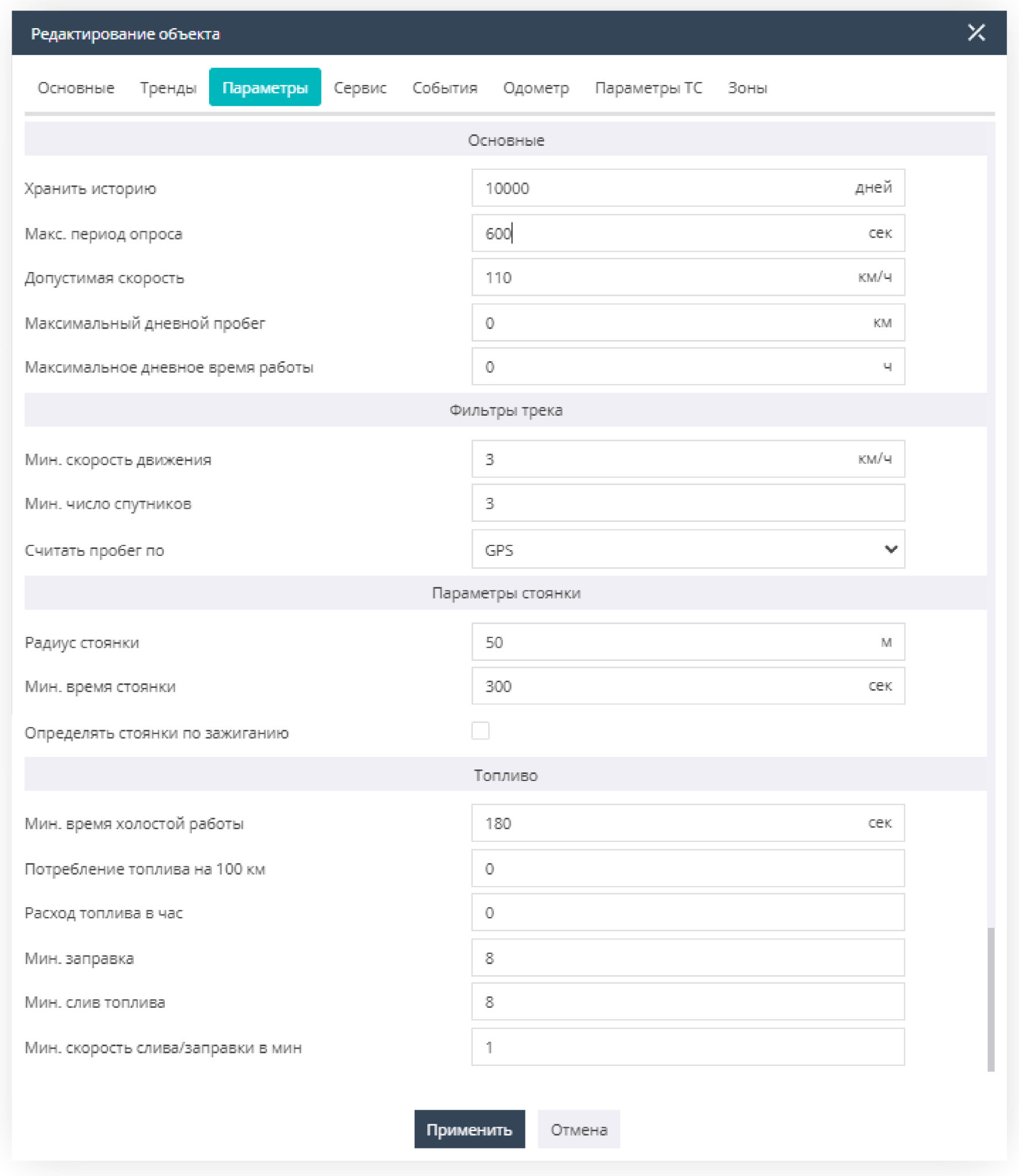
- Parameters
This tab is intended for setting various object parameters, such as: data retention time, the maximum object polling period, the maximum allowed speed, the maximum daily mileage, and the operating time. These settings are made in the General subsection.
In the Track filters subsection, track filtering is configured: setting the minimum movement speed, the minimum number of satellites, and the mileage calculation method — by odometer or satellites.
In the Parking parameters subsection, the minimum parking time and radius are defined. Here you also configure the accounting of parking by the Ignition sensor.
In the Fuel subsection, the parameters for fuel filtering are set: minimum idling time, minimum drain and minimum refueling, the refueling/draining rate (liters per minute), and detection of refuelings and drains while moving.
-
Driving style
-
Service log
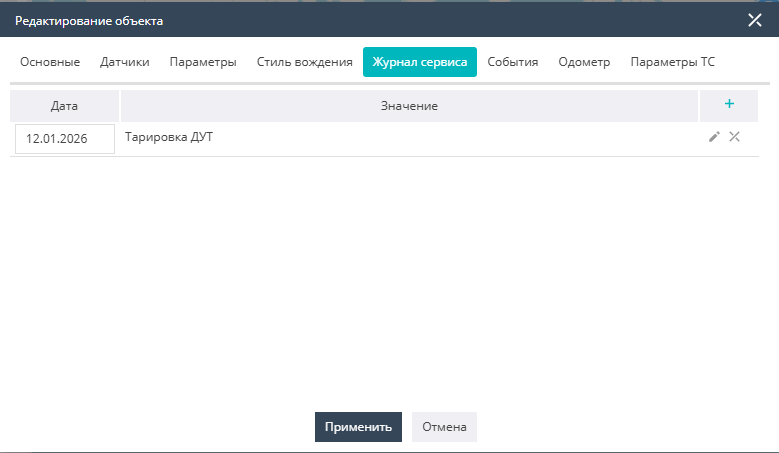
This contains information in journal format for tracking the service maintenance of the object. It contains two types of fields: the date the record was entered and the arbitrary informational record itself. Dates and text records can be edited.
- Events
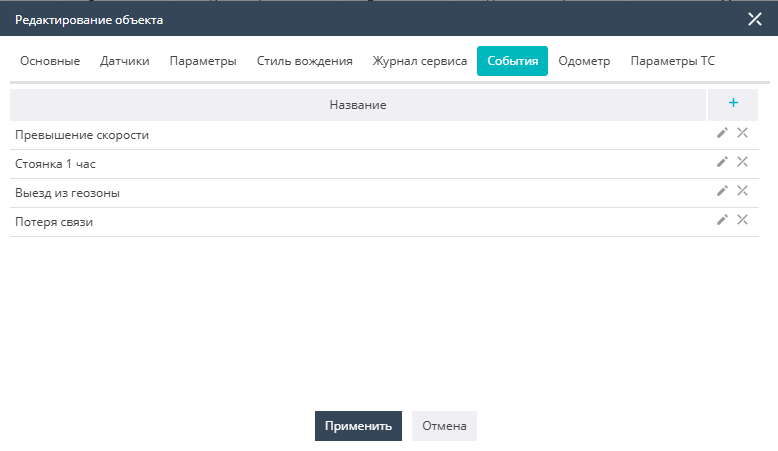
This tab is intended for managing the user notification rules that are applied to this object. Note that no events, except critical ones, will be generated for the object until at least one notification rule is associated with it. The list of events can be adjusted, or the events themselves edited.
- Odometer
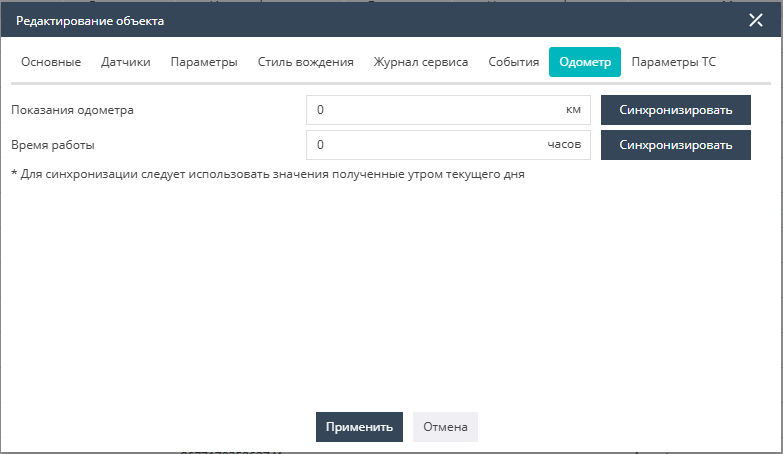
This tab is intended for setting the current values of the odometer and the engine-hours counter. The data is set as of the beginning of the current day and is used as the initial values for further calculations. Later, the data can be adjusted by setting new values.
- Vehicle parameters
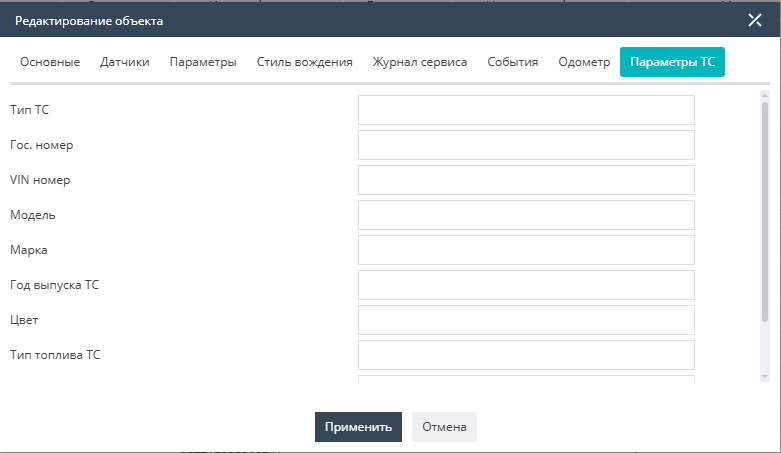
This tab contains reference technical information about the vehicle, such as make, vehicle model, fuel type, engine displacement and power, etc.
Sensor configuration
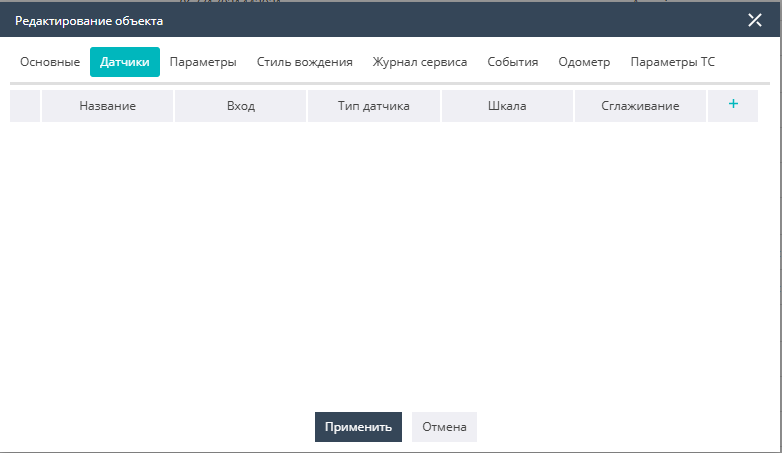
The sensor configuration dialog opens from the object's sensor settings dialog: to add a new sensor or edit an existing one. It contains three sections.
- General
Contains the main sensor parameters: its name, color, and units of measurement.
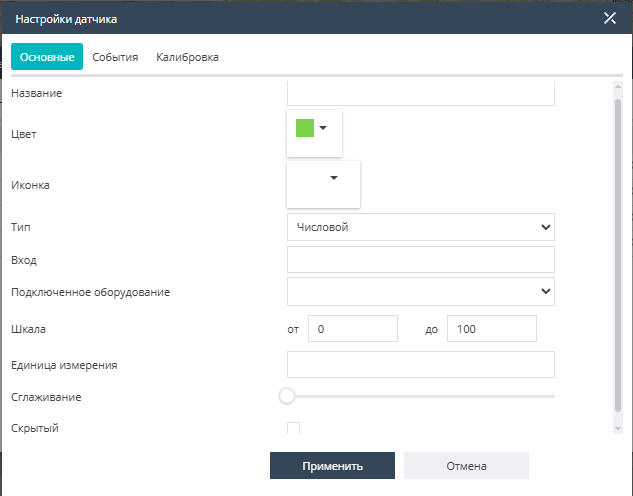
Other sensor parameters:
- Sensor type — specifies whether the sensor is digital or discrete.
- Input — intended for specifying the parameter that is the data source for the sensor, as well as for entering a formula or another expression that will be applied to the calculated sensor values. The parameter name depends on the navigation equipment used and its protocol. Data can be received via relay, and the parameter naming will depend on the relay protocol by which the data is transmitted to the system. The main list of parameters is given in the table below.
- Connected equipment — determines the use of the sensor in calculations, reports, or its binding to a specific property (for example, vehicle fuel level sensor, attachment equipment fuel level, ignition, counters, driver code binding).
- Scale — the minimum and maximum sensor values. Values outside the scale will be discarded.
- Smoothing allows you to set the degree of averaging of the sensor graph points in the range from 1 to 30 units.
- Hidden — used to hide the sensor from view in the Tracking and History menus.
List of main parameters
| Name | Parameter | Sensor type |
|---|---|---|
| Speed | speed | Digital |
| Satellites | sats | Digital |
| External voltage | pwr_ext | Digital |
| Battery voltage | pwr_int | Digital |
| GSM signal | gsm | Digital |
| Altitude above sea level | altitude | Digital |
| Heading | course | Digital |
Specifying the sensor:
- UNIT — the sensor name
- value — the value of the current sensor
Events
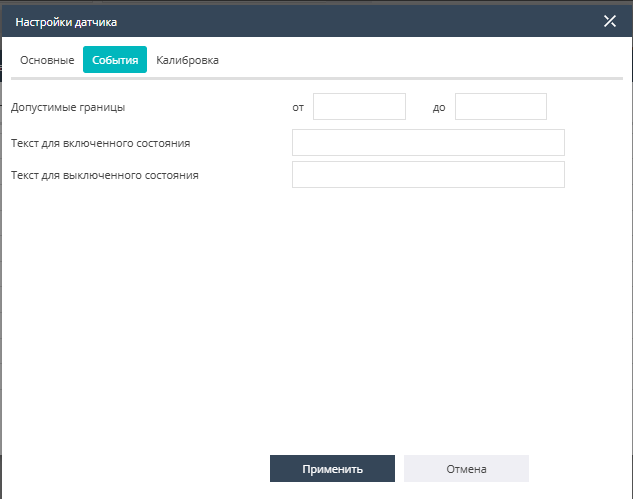
Allows you to set the range of allowed sensor values. Values going outside the specified range will generate an alarm by the sensor.
For a numeric sensor:

For a discrete sensor, you can additionally specify text for the on and off states:
Calibration
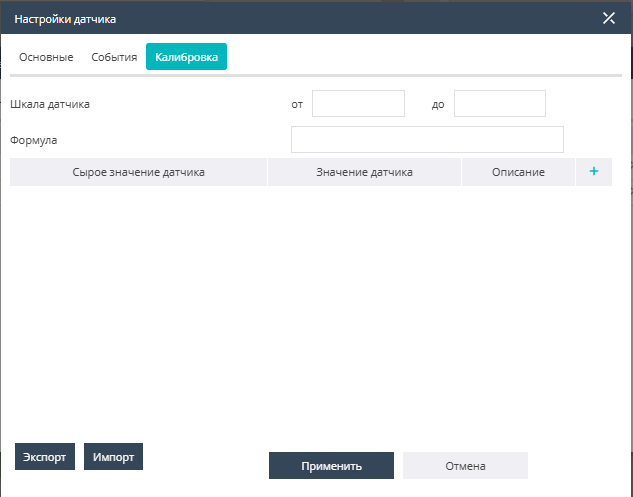
The Calibration tab is used to configure the conversion of raw sensor data into user values. This function is required, for example, to convert fuel level sensor data from voltage to liters, or to convert units of measurement. A filled-in calibration table can be exported or imported from an MS Excel file. In the Description field you can set text names for the values.
- Allowed bounds — defines the range of raw sensor values that will be accepted for calculation.
- Formula — provides the ability to apply arithmetic, logical, and other expressions to the raw sensor values. Validation expressions and bit selection in the sensor parameter are also used here.
Main expressions
The most commonly used operations are listed below. The complete list of supported operators, functions and constants is given in Appendix 1.
The GALAKTIKA system implements support for arithmetic operations in the formulas of calculated sensors.
Mathematical (arithmetic) operators:
| Formula | Syntax | Description |
|---|---|---|
| ( ) | ( … ) | Left bracket, right bracket |
| + | a + b | Addition operator |
| - | a - b | Subtraction operator |
| *, х, Х | a*b, aхb, aХb | Multiplication operator |
| /, ÷ | a / b, a÷b | Division operator |
| % | n% | Percent operator |
| # | a # b | Remainder of division (mod) |
| ^ | a^b | Exponentiation |
Expression examples:
- freq3*30
- rs485fuel_level1*0.985
- value*[Ignition]
- pwr_ext/1000
The GALAKTIKA system implements support for conditional expressions (if-operators) in the formulas of calculated sensors.
Logical operators (conditional expressions):
| Formula | Syntax | Description |
|---|---|---|
| &, and | p&q, and(a1, ..., an) | Logical AND |
| |, or | p | q, or(a1, ..., an) | Logical OR |
| ⊽, not | p ⊽ q, not(х) | Logical NOR |
| ⊻ | p ⊻ q | Exclusive OR (XOR) |
| ⇒ | p ⇒ q | Implication (IMP) |
| ⇐ | p ⇐ q | Reverse implication (CIMP) |
| ⇔ | p ⇔ q | Logical equality (EQV) |
| ~ | ~p | Negation |
| '= | a = b | Equality |
| ≠ | a ≠ b | Inequality |
| < | a < b | Less than |
| ≤ | a ≤ b | Less than or equal |
| > | a > b | Greater than |
| ≥ | a ≥ b | Greater than or equal |
| if | if (condition, value_if_true, value_if_false) | If |
| if <Ternary function> | if(cond, expr-if-true, expr-if-false) | If — Ternary function |
Expression examples:
Parameter selection: or or or (priority decreasing): accel_max | brk_max | crn_max
Validation:
if(pwr_ext>13.6 && speed>1; adc2, 0)
If the voltage is above 13.6 and the speed is above 1 km/h, then apply adc2, otherwise =0.
if([Ignition] != 0, value, -1)
If the Ignition sensor is not equal to zero, apply the value of the current sensor, otherwise discard the value as out of range.
The GALAKTIKA system implements support for bitwise operations.
Bitwise operations:
| Formula | Syntax | Description |
|---|---|---|
| @~ | @~a | Bitwise unary inversion |
| @& | a @& b | Bitwise AND operation |
| @^ | a @^ b | Bitwise XOR operation |
| @| | a @| b | Bitwise OR operation |
| @<< | a @<< b | Left shift with sign preservation |
| @>> | a @>> b | Right shift with sign preservation |
Expression examples
Bit selection:
When you need to select a bit from a parameter, the following expression is used:
modules_st @& (1 @<< 7),
where:
- the number of the selected bit: 8
- the parameter name: modules_st
Other expression examples:
Validation:
value * [Ignition health]
Determining the total fuel level of two FLSs:
([FLS 1]+[FLS 2])
Determining the average fuel level across two FLSs:
([FLS 1]+[FLS 2])/2