Raw data
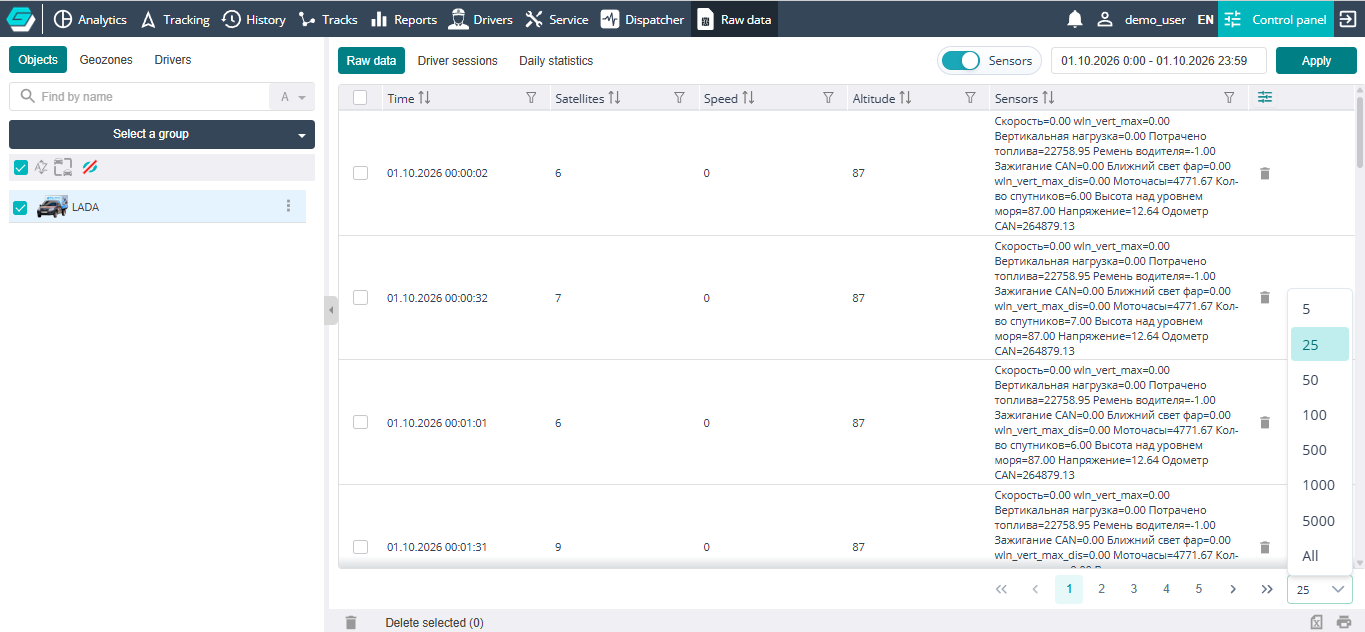
The Raw data section is intended for analyzing the data coming from monitored objects: here you can view the packets received from the device, the driver sessions calculated by the system, and the object's daily statistics. The section helps when you need to check exactly what the device transmits and find the cause of discrepancies in reports.
The section is visible to users who have the Raw data checkbox ticked on the "Interface" tab of the user settings (see Access model for details). It can be opened in two ways:
- with the Raw data item in the system's top menu;
- from the Control panel: the Objects tab → the Advanced settings menu in the lower right corner → Raw data.
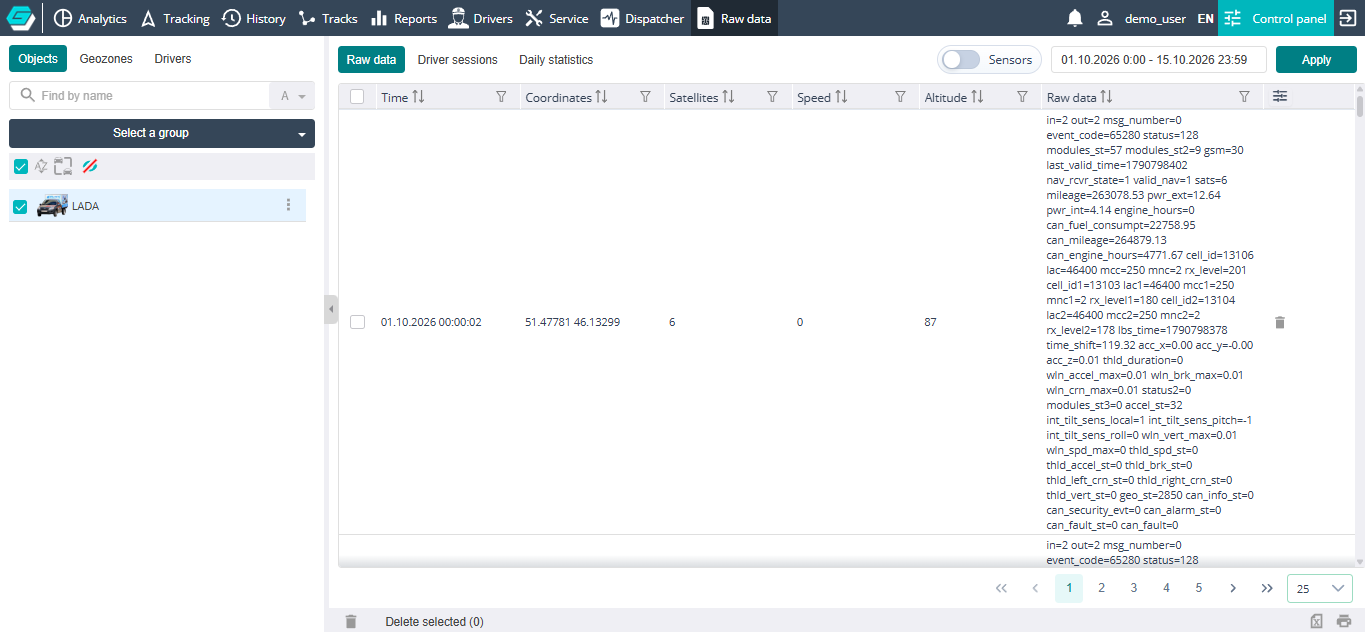
Screen layout
On the left is the work panel with the Objects, Geozones and Drivers tabs — with the same functions as in the Tracking section. The panel can be collapsed with the button on its right border to make room for the table.
On the right is the data table. Above it are:
- the section tabs:
- Raw data — packets received from the device, without filtering, smoothing or validation;
- Driver sessions — driver trips calculated by the system;
- Daily statistics — object figures grouped by day;
- the Sensors toggle — on the "Raw data" tab only, see Raw data;
- the period field — the start and end of the interval for which data is shown;
- the Apply button — loads data for the selected period.
To get data:
- On the Objects tab, click the object you need — its row is highlighted. The "Raw data" and "Daily statistics" tabs show data for the highlighted object; until an object is highlighted, the table shows "Select an object".
- Set the period in the field above the table.
- Click Apply.
Working with the table
The tables on all three tabs work the same way.
| Icon | Action |
|---|---|
 | Sort — clicking a column header sorts the rows in ascending order, clicking again sorts them in descending order |
 | Column filter — opens a window for selecting rows by the value in this column |
 | Column selection — opens the list of table columns, where unneeded ones can be hidden |
A column's width can be changed by dragging the border of its header with the mouse.
Column filter
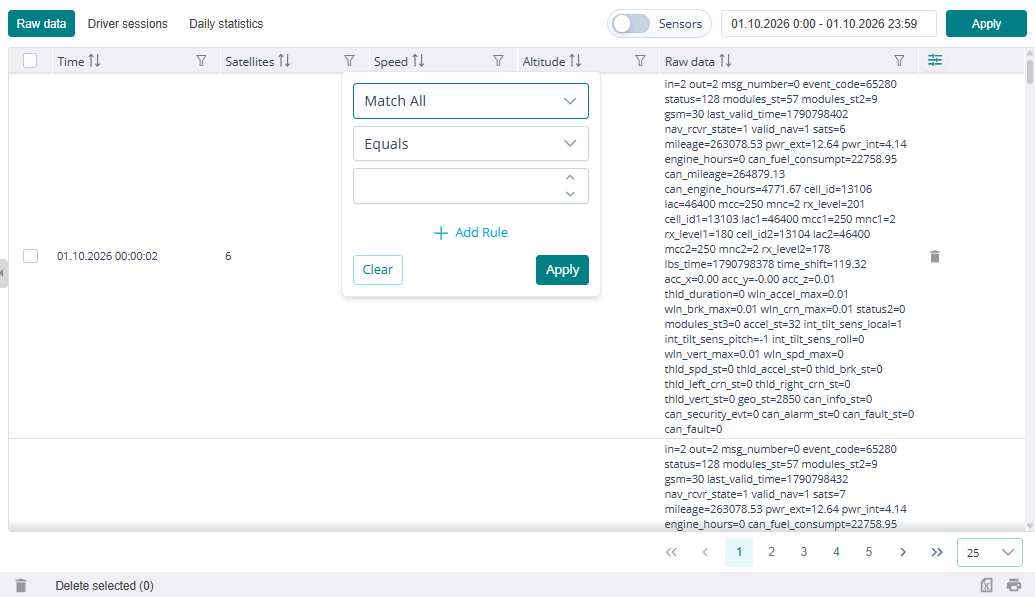
The filter window contains:
-
the rule combination condition — used when there are several rules:
- Match All — a row is shown if all rules are met;
- Match Any — a row is shown if at least one rule is met;

-
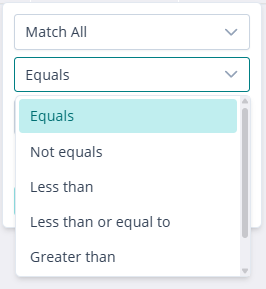
the comparison method:
- for text columns (time, coordinates, data, names) — Starts with, Contains, Not contains, Ends with, Equals, Not equals;
- for numeric columns (satellites, speed, altitude, fuel consumption, etc.) — Equals, Not equals, Less than, Less than or equal to, Greater than, Greater than or equal to;
-
the value field — the text or number the column value is compared with;
-
Add Rule — adds one more rule for the same column;
-
Clear — removes the filter from the column;
-
Apply — applies the filter.
Filters can be set on several columns at once: the table keeps the rows that match all filters. The filter icon of a column with an active filter is highlighted.
Column selection
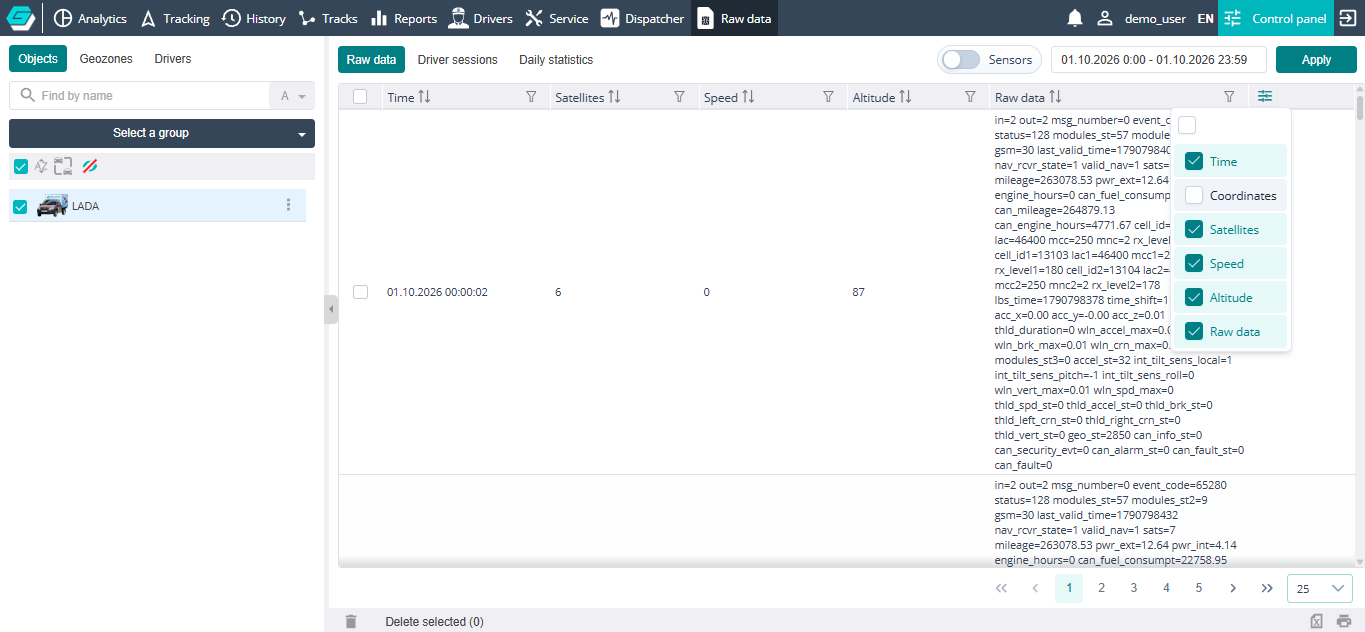
The list has the columns currently shown in the table ticked. Clear a checkbox to hide a column and tick it to bring the column back. The checkbox in the top row of the list hides or shows all columns at once. If all columns are hidden, a prompt to select the columns to display is shown instead of the table.
The column set, sorting and filters are remembered in the browser and kept the next time the section is opened.
Footer
Below the table are:
-
page navigation — go to the first, previous, next or last page, or to a page by its number;
-
rows per page — 5, 25, 50, 100, 500, 1000, 5000 or All; 25 by default;
-
export icons in the lower right corner:
| Icon | Action |
|---|---|
 | Export to Excel — download the table of the current tab as an Excel file |
 | Print — open the browser's print window, where the table can be printed or saved as PDF |
On the "Raw data" tab, the left part of the footer also has the Delete selected button — see Deleting packets.