Raw data
The Raw data tab shows the packets received from the device of the highlighted object for the selected period: navigation data and parameter values — without filtering, smoothing, validity checks, etc. One table row is one packet. The tab helps you check exactly what the device transmits and how often.
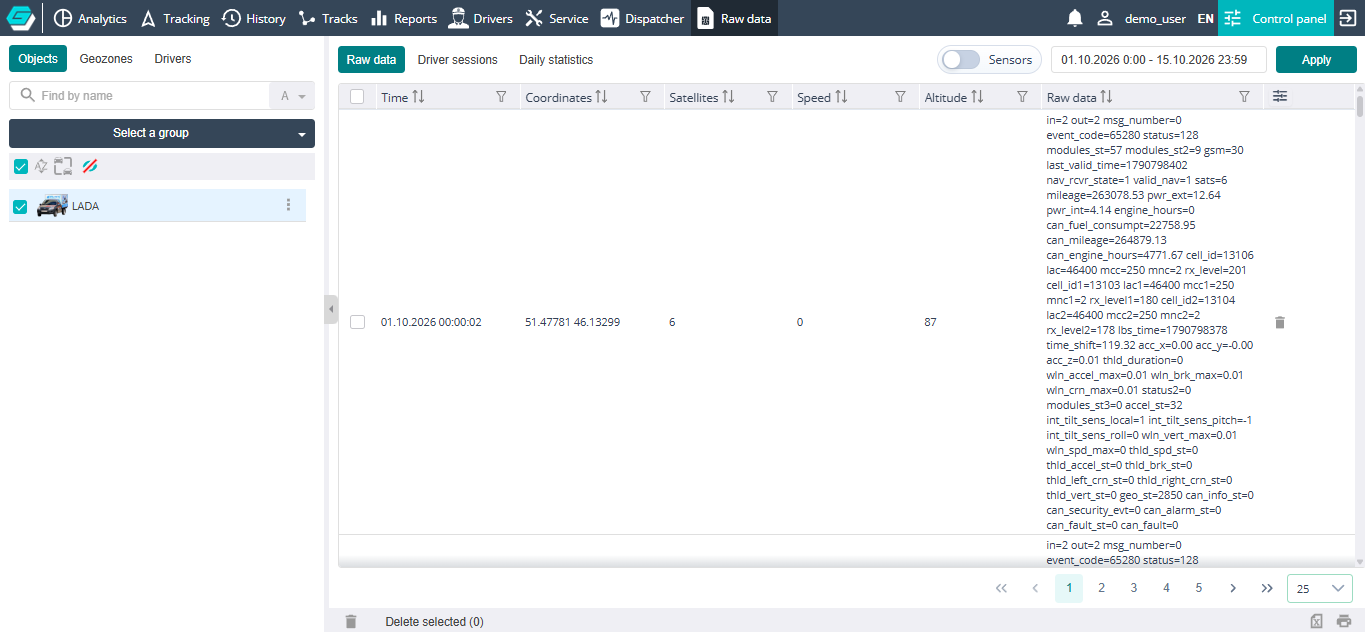
Table
- (checkbox) — marks the packet for deletion; the checkbox in the header marks all rows left after the filters;
- Time — the packet date and time;
- Coordinates — latitude and longitude;
- Satellites — the number of satellites used to determine the position;
- Speed — the speed reported by the device;
- Altitude — the altitude above sea level;
- Raw data / Sensors — the packet parameter values; the header and content of the column depend on the Sensors toggle (see below);
 — deletes the packet.
Unneeded columns can be hidden, and rows sorted and filtered, as described in Working with the table.
The Sensors toggle
The Sensors toggle to the right above the table changes the content of the last column.
Off — the column is called Raw data and contains the packet parameters exactly as the device
sent them: parameter_name=value (for example, pwr_ext=12.64, can_mileage=264879.13). The set and
names of the parameters depend on the device model.
On — the column is called Sensors and contains the values of the
sensors configured for the object in the
Control panel, as Sensor name=value (for example,
Voltage=12.64, CAN odometer=264879.13). The values are calculated according to
the sensor settings (formulas, calibrations) and rounded to two decimal places. These are the same
sensors shown in the object card in the Tracking section. While the values
are being calculated, the column shows "Loading".
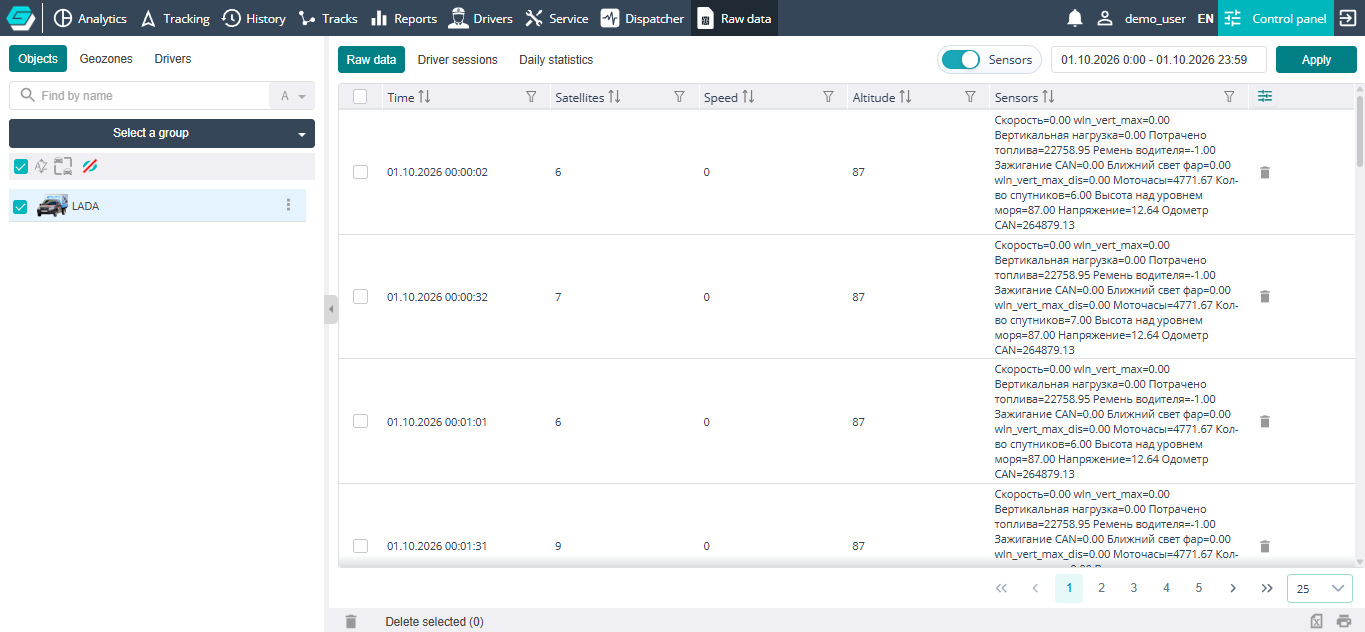
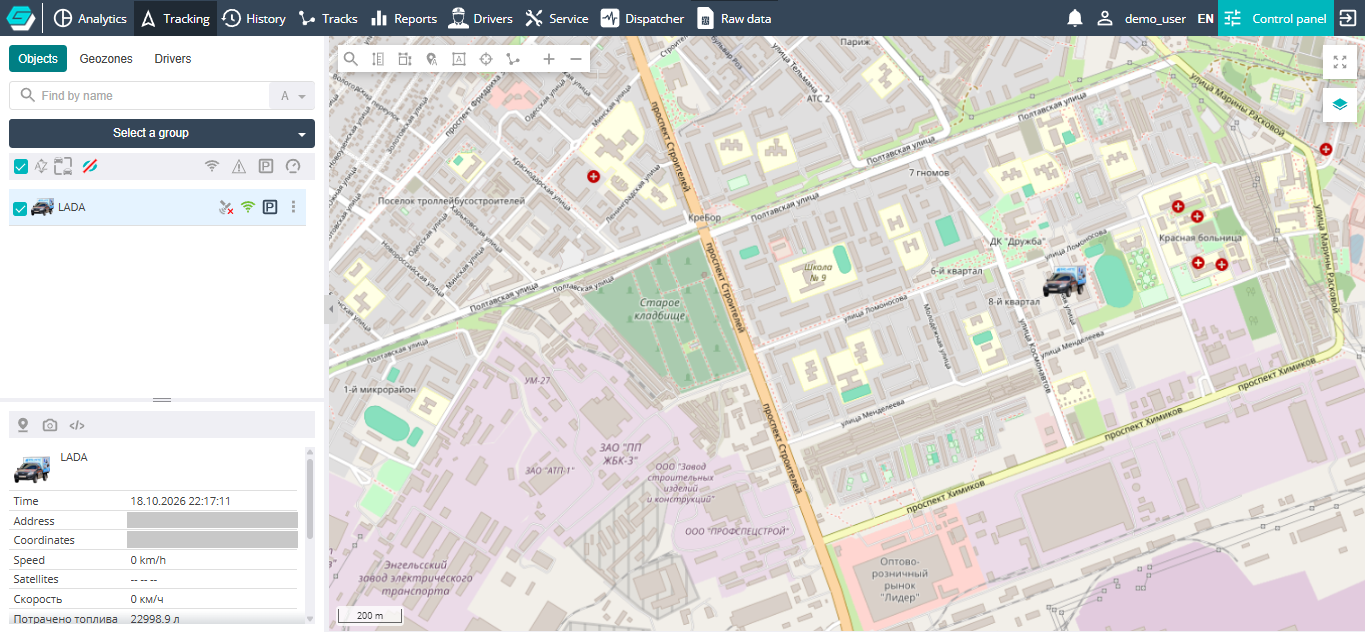
The "Sensors" mode is handy for checking how a configured sensor converts the source parameter: compare the parameter value with the toggle off against the sensor value with the toggle on.
Deleting packets
Erroneous packets (for example, with coordinate outliers) can be deleted from the object's history. Deletion is available to users with the "Integrator" or "Administrator" role (see Roles); other users do not see the delete icon or the Delete selected button.
- One packet — click
in its row and confirm the deletion.
- Several packets:
- Tick the rows you need (the checkbox in the header marks all rows left after the filters).
- Click Delete selected in the left part of the footer — the number of ticked rows is shown in brackets.
- Confirm the deletion.
Deleted packets cannot be restored: they disappear from the object's history, and tracks, reports and statistics for that period are built without them.