Dispatcher
This section is intended for real-time monitoring of the fleet. The main feature of the section is the ability to visually monitor the current readings of object sensors, presented as cards, as well as to monitor events and alarms configured for the User, presented by Notification groups.
The section lets you work with cards in the Dispatcher subsection or with tabular reports in the Reports subsection (Dispatcher reports).
For the user's convenience, the data display format can be selected as:
- cards,
- a table,
- grouped by events.
Cards
The Cards tab displays the values of the configured sensors as separate cards. Each card is a separate sensor. When a sensor parameter is within the allowed limits (the range values are set in the sensor settings), the card is in a normal state and is not highlighted in any way; but when the sensor parameter values go beyond the allowed limits, the card is highlighted in red, signaling an alarm. When the parameter values return to the allowed range, the alarm is automatically cleared from the card, and the card display returns to its normal state (no alarms).
The Cards tab monitoring several sensors looks as follows:

Tables
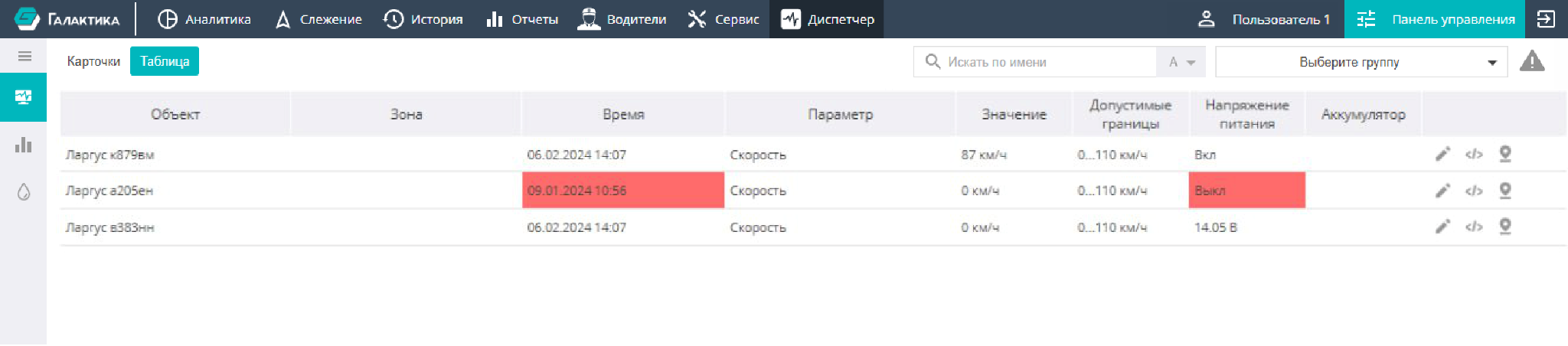
The Tables tab is used for real-time monitoring of parameters as a table, when it is visually more convenient to track sensor readings in a table. The values of sensors whose parameters go beyond the allowed limits will be highlighted in color and identified as alarms.
Events
The Events tab is intended for real-time monitoring of events and alarms occurring on the monitored objects. The distinguishing feature of this subsection is the ability to configure event groups. When an alarm is triggered or a monitored event occurs, the object name appears in the card of the corresponding group. The dispatcher can quickly perform the necessary actions to assess and handle the alarm: view the object's current location, send a command to the device, or manually deactivate the event. When an alarm is deactivated, it disappears from the group card, but the record of the alarm's occurrence remains in the history.
For convenience in assessing the state of the object that triggered the alarm, the lower part of the screen shows a table with the object's address, ignition state, speed, number of satellites, and the time and date of the last message from the object.
To display only objects with active alarms, activate the "Show alarms only" icon in the upper right part of the screen:

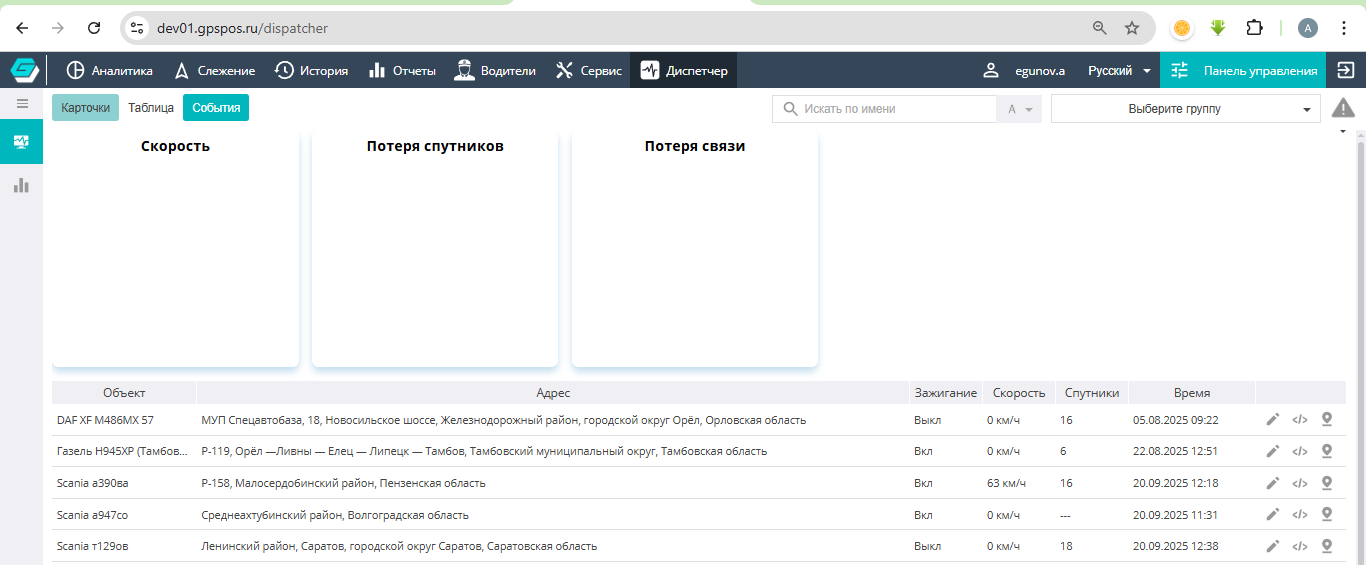
To perform quick object or sensor settings, promptly send a command to the device, or view the object's current location, you can use the corresponding icons on the right side of the table:
