Service reports
This subsection lets you view information about completed works as reports. The section interface is similar to the "Reports" section: an object selection panel on the left, and a date range picker with an Apply button at the top.
Generating a report
- In the left-hand panel, select one or more objects to build the report for.
- Below the object list, use the drop-down to choose the report type — Summary report or Completed works.
- At the top of the screen, set the period to build the report for.
- Click Apply.
Until all of these are set, the screen shows a hint instead of a report: "To generate report, please specify all report parameters, select objects and press apply button".
Two reports are available. Above each report's table, its name and the selected period are shown — for example, "Summary report for the period from... to...".
Summary report
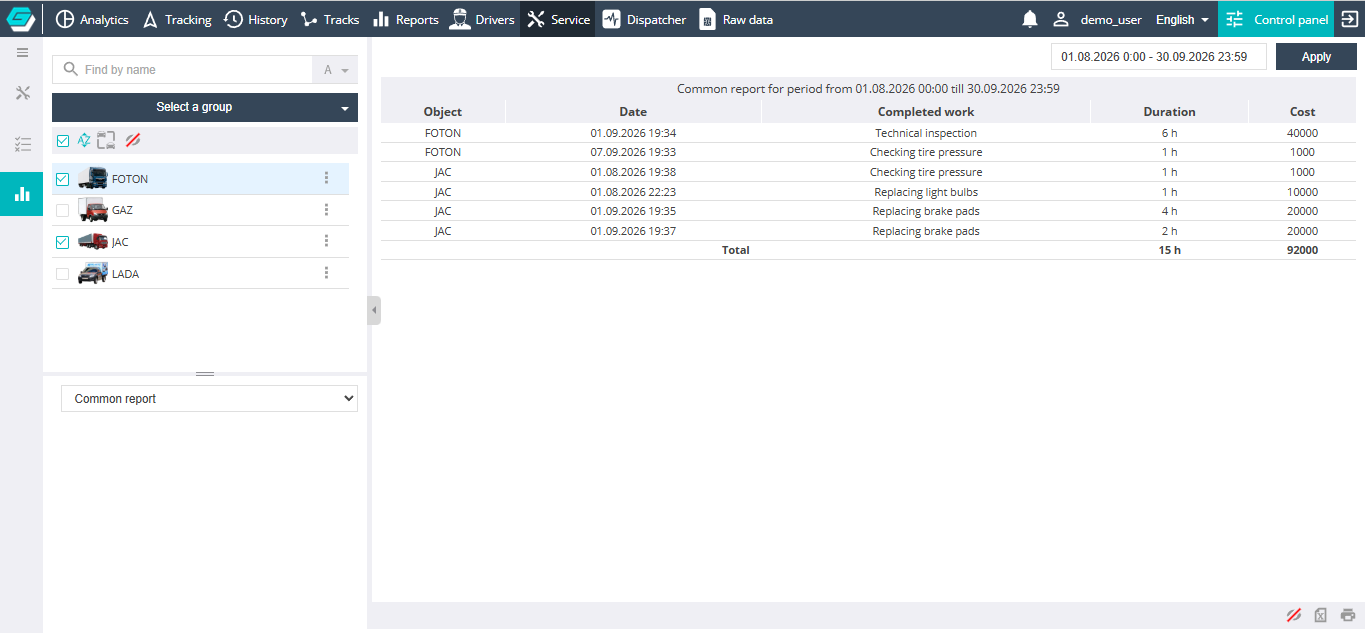
A single table listing completed works across all selected objects: object, date, work name, duration, and cost — with a total row for duration and cost.
Completed works
The same information, but as a separate table for each selected object — including objects that had no completed works in the period (the report shows an empty table for them).
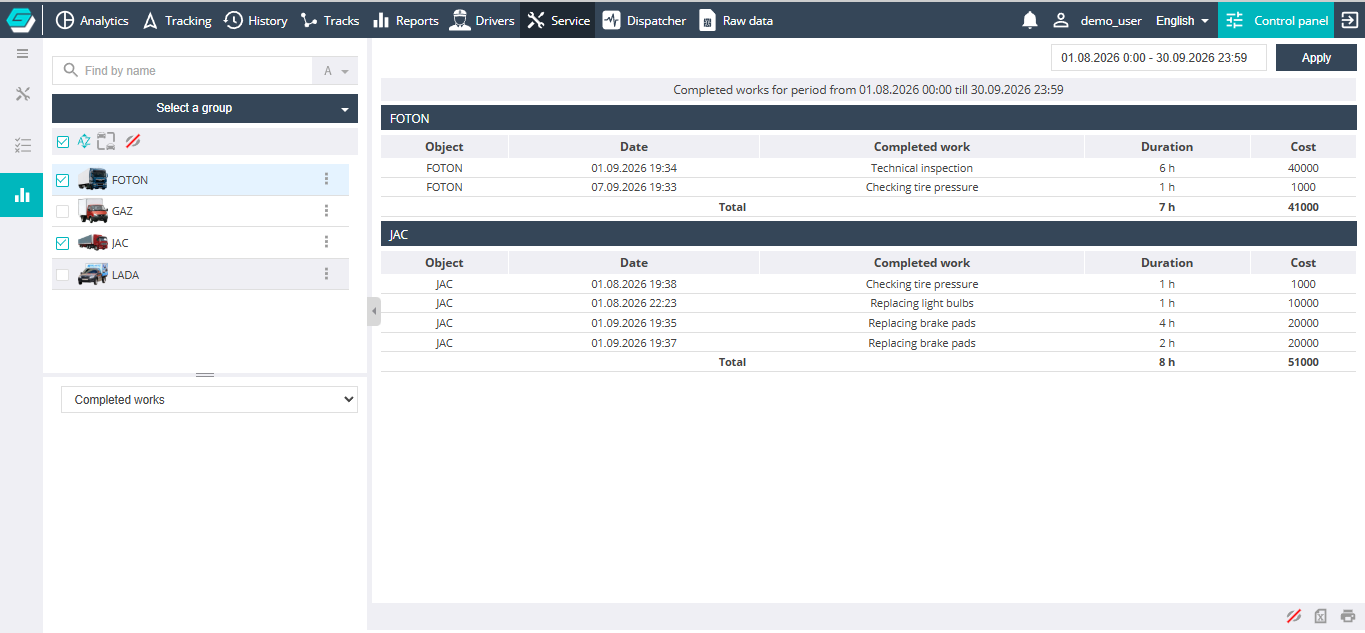
At the bottom of the screen you can hide empty rows (eye icon), export the report to Excel, or print it.
