Roles and access rights
This page explains what determines what a user sees in the system and what they can do. The settings described here are made by an Integrator or Administrator in the user edit dialog — see Users.
Five levels of access
A user's rights are made up of five independent settings. Each answers its own question:
| Level | Question it answers | Where it is set |
|---|---|---|
| Company | Which part of the hierarchy the user works in | "Account" tab → "Company" field |
| Role | Which actions are allowed in principle | "Access rights and roles" tab → "Role" field |
| Available pages | Which top-menu sections the user sees | "Interface" tab |
| Object groups | Which objects the user sees and what they can do with them | "Access rights" tab |
| Containers | Which geozones, drivers, keys, templates, retranslations and notifications are available | "Containers" tab |
The levels do not replace each other — they work together. For example, the User role allows editing objects, but the user can only edit objects of the groups in which they were granted "Edit objects".
A regular user (Observation, Demonstration or User role) sees only what they were explicitly given access to through object groups and containers — even within their own company. An Integrator or Administrator sees everything in their company and its child companies without any extra settings.
Company and hierarchy
Each user belongs to one company. Companies form a tree: a company can have a parent company and any number of child companies.
- A user has access to their own company and all of its child companies (at any depth). The parent company and "sibling" companies at the same level are not visible.
- The lists of companies and users in the Control Panel are always limited to this tree — for every role, including Administrator.
- Integrators and Administrators automatically see all objects, object groups and containers of their company and its child companies.
- For the other roles, the company by itself grants no access to objects — object groups and containers do.
If a company is blocked, users of that company and all its child companies cannot work in the system: their session ends on the next request. Users of the parent company are not affected. The "Blocked" checkbox of an individual user works the same way.
How to build a hierarchy in practice is described in Service hierarchy.
Roles
A role is a ready-made set of rights. There are five roles; each one includes everything the previous one can do:
| Role | What the user sees | What the user can change |
|---|---|---|
| Observation | Only Tracking and Dispatcher: the current position and state of objects. History, tracks, reports and analytics are not available | Nothing. Can send commands if this is allowed in the object group |
| Demonstration | All working sections: Analytics, Tracking, History, Tracks, Reports, Drivers, Service, Dispatcher | Nothing; the Control Panel is not available |
| User | Same as Demonstration, plus the Control Panel | Objects, object groups, geozones, drivers, keys, commands, notifications, etc. — within the rights granted in object groups and containers |
| Integrator | Same, plus the Control Panel sections "Companies", "Users", "Report templates" and "Action log" | Manages companies, users and containers, creates new objects, moves objects between companies. Sees and changes everything in their company and its child companies without rights in groups and containers |
| Administrator | Same, plus the Control Panel section "Server" | Same as Integrator, plus server settings. Only an Administrator can assign the Administrator role to another user |
A new user gets the User role by default.
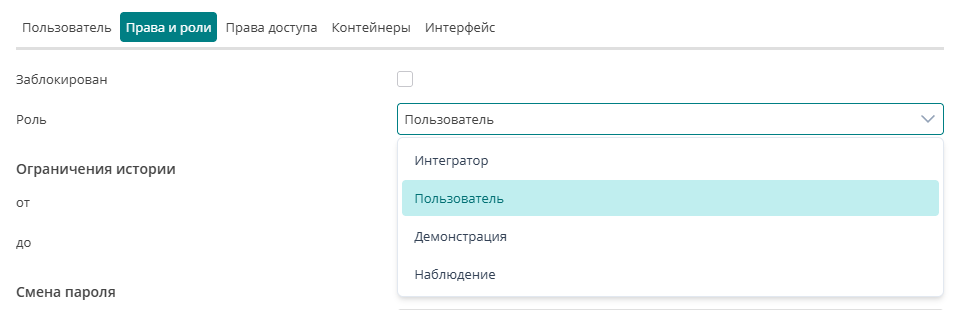
When creating or editing a user, you cannot give them a role, pages or rights above your own. An Integrator can create other Integrators but not Administrators; the Administrator role is not even listed if the editor does not have it.
Available pages
The role sets the upper limit, and the checkboxes on the "Interface" tab let you narrow the set of top-menu sections for a particular user:
- Analytics, History, Tracks, Reports, Drivers, Service — work only for roles from Demonstration upwards: with the Observation role these sections do not appear even if the checkboxes are ticked;
- Dispatcher — available to any role;
- Raw data — opens the Raw data and Diagnostics sections with raw device packets.
The Tracking section has no checkbox. The Control Panel appears automatically for the User, Integrator and Administrator roles.
Changing the role resets the "Raw data" checkbox. After choosing a new role, check the "Interface" tab.
In addition, the "Access rights and roles" tab has History limits — a period ("From" and "To") outside of which the user will not see history and reports. A user cannot change their own history limits.
Object groups: access to objects
An object group is not only a way to organise the list but also the only way to give a regular user access to objects. A user sees an object only if it belongs to at least one group the user has been added to.
Each "user — group" pair has its own set of rights:
Object permissions — apply to all objects of the group:
- Edit objects — change object settings, parameters and sensors;
- Edit IMEI — change the device identifier (automatically enables "Edit objects");
- Delete objects — delete the group's objects;
- Send commands — send commands to the devices of the group's objects.
Group permissions — apply to the group itself:
- Edit group — change the name and the list of objects;
- Manage members — add and remove users of the group and grant them rights (automatically enables "Edit group");
- Delete group — delete the group.
Presets of access rights tick a ready-made set of checkboxes:
- Read only — all checkboxes cleared: the user sees the group's objects but cannot do anything with them;
- Operator access — "Send commands";
- Dispatcher access — all object permissions: "Edit objects", "Edit IMEI", "Delete objects", "Send commands";
- Full access — all checkboxes, including group permissions.
A coloured marker next to a group in the list shows which preset its rights match. If the checkboxes match no preset, the rights are custom.
How group rights work:
- If an object belongs to several groups, an action on it is allowed if it is allowed in at least one of those groups.
- Rights to change objects take effect only together with a role from User upwards. "Send commands" works with any role.
- A user without "Manage members" cannot add other users to the group. A user with this right can grant others only the rights they have in that group themselves.
- A user can add to a group only objects they can see, and cannot use a group to gain more rights on an object than they already have.
You can give a user access to a group in two ways: on the "Access rights" tab of the user dialog, or in the Control Panel section "Object groups" by adding the user to the group.
Groups of geozones, drivers, keys and notifications do not grant access: they only organise lists. Access to their contents is determined by the container (see below).
Containers: access to shared directories
A container is a company "folder" for shared directories. Containers hold:
- geozones and geozone groups;
- drivers and driver groups;
- keys and tags and their groups;
- report templates;
- command templates;
- retranslations;
- notifications and notification groups.
Objects are not stored in containers — access to them is granted through object groups.
When a company is created, a container with the same name is created for it automatically. An Integrator can create additional containers in the company — for example, so that the geozones of one branch are not visible to employees of another. When creating a geozone, driver, key or other element, the Container field in the dialog selects where it goes.
A user can belong to several containers. Rights are set separately for each container, by group:
| Permission group | View | Create | Edit | Delete |
|---|---|---|---|---|
| Geozone permissions | Read geozone | Create geozone | Edit geozone | Delete geozone |
| Driver permissions | Read driver | Create driver | Edit driver | Delete driver |
| Driver key permissions | Read key/label | Create key/label | Edit key/label | Delete key/label |
| Report template permissions | Read report template | Create report template | Edit report template | Delete report template |
| Command template permissions | Read command template | Create command template | Edit command template | Delete command template |
| Retranslation permissions | Read retranslation | Create retranslation | Edit retranslation | Delete retranslation |
The Container permissions group ("Edit container", "Manage members", "Delete container") applies to the container itself. Only Integrators and Administrators can create, rename and delete containers or change their members, so for users with other roles these checkboxes have no effect.
How container rights work:
- Without a container, a user with a role below Integrator sees no geozones, drivers, keys, templates, retranslations or notifications.
- The container's notifications are visible to any of its members; other directories require the corresponding "Read…" checkbox.
- For geozones, drivers, keys and report templates, the create, edit and delete checkboxes automatically enable viewing. For command templates and retranslations, tick "Read…" separately.
- Changing a container's contents requires a role from User upwards.
Presets of access rights for a container:
- No access — all checkboxes cleared: the user sees the container in their list but not its contents;
- Read only — all "Read…" checkboxes;
- Operator access — read, create and edit;
- Dispatcher access — read, create, edit and delete;
- Full access — all checkboxes, including the "Container permissions" group.
As with object groups, a coloured marker next to a container in the list shows the matching preset or custom rights.
A company's containers are managed in the company edit dialog, on the "Containers" tab; an individual user's rights — on the "Containers" tab of their dialog.
Example
Dispatcher Ivanov works in the company "North Branch" with the User role. He has:
- the object group "Dump trucks" with "Edit objects" and "Send commands";
- the object group "Cars" with the "Read only" preset;
- the container "North Branch" with "Read geozone", "Create geozone" and "Read driver".
As a result, Ivanov:
- sees the dump trucks and the cars, but not the company's other objects;
- can change dump truck settings and send them commands, while the cars are view-only;
- sees the branch's geozones and can create new ones, but cannot edit or delete existing ones;
- sees the branch's drivers but cannot change them;
- does not see keys and tags, report templates or retranslations;
- cannot manage users and companies: that requires the Integrator role.
Why can't the user see…
| Situation | What to check |
|---|---|
| The user is logged out right after signing in | The user's "Blocked" checkbox; the status of their company and all parent companies |
| No objects (or not all of them) | Whether the user is added to object groups and whether the objects belong to those groups |
| No History, Reports or Analytics sections | Role from Demonstration upwards; checkboxes on the "Interface" tab |
| No Control Panel | Role from User upwards |
| No "Companies", "Users", "Report templates", "Action log" sections | Integrator or Administrator role |
| No geozones, drivers, keys, templates | Whether the user is added to a container and the "Read…" checkbox is ticked |
| Cannot edit an object | Role from User upwards and "Edit objects" in one of the object's groups |
| Cannot send a command | "Send commands" in one of the object's groups |
| No Raw data section | The "Raw data" checkbox on the "Interface" tab |