Notifications
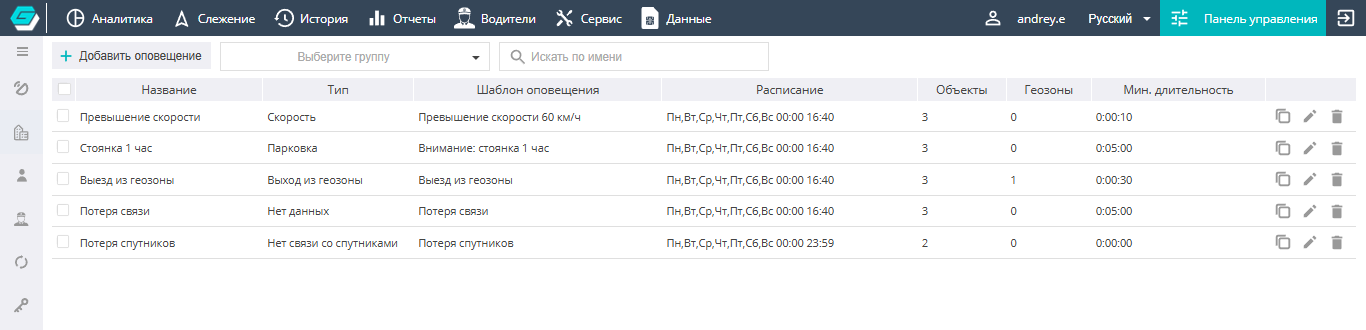
In the Control Panel, on the Notifications tab, the user can configure the conditions according to which the system reacts to events and sends notifications about them.
When the server receives data from a device, it checks whether the conditions set by the user are true or false for this data. If they are true, the server generates an event, registers it, and sends an email, generates the specified http request, or a message in Telegram. Also, upon the occurrence of an event, it is possible to send a command to the navigation device.
The system can notify the user of any object states of interest to them (speeding, entering a geozone, fuel drain, loss of connection, long parking, etc.).
Creating notifications

- Click the add button.
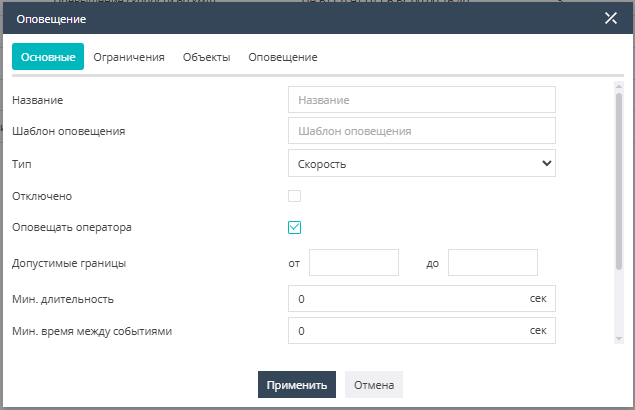
- In the window that opens, while on the General tab, assign the notification a name and type (parking, fuel drain, speed control, loss of satellite connection, etc.). The text of the Notification template will arrive in the notifications.
- The notification can be disabled in the corresponding checkbox.
- The notification can be shown to the user or hidden.
- Set additional parameters: allowed bounds, the minimum duration of the state, the minimum time between events, and the event repetition time.
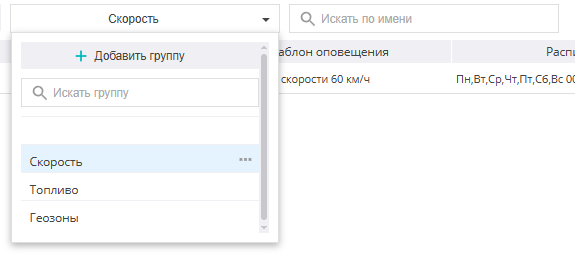
- If necessary, set a group for the notification.
Notification types:

The notification template can include parameters:
- %UNIT_ID% or %IMEI% — the object identifier
- %UNIT% or %OBJECT% — the object name
- %MSG_TIME% or %TIME% — the message time
- %LAT% and %LNG% — the coordinates where the event occurred
- %DRIVER_ID% — the driver key
- %MINZONE% — the name of the geozone in which the event occurred
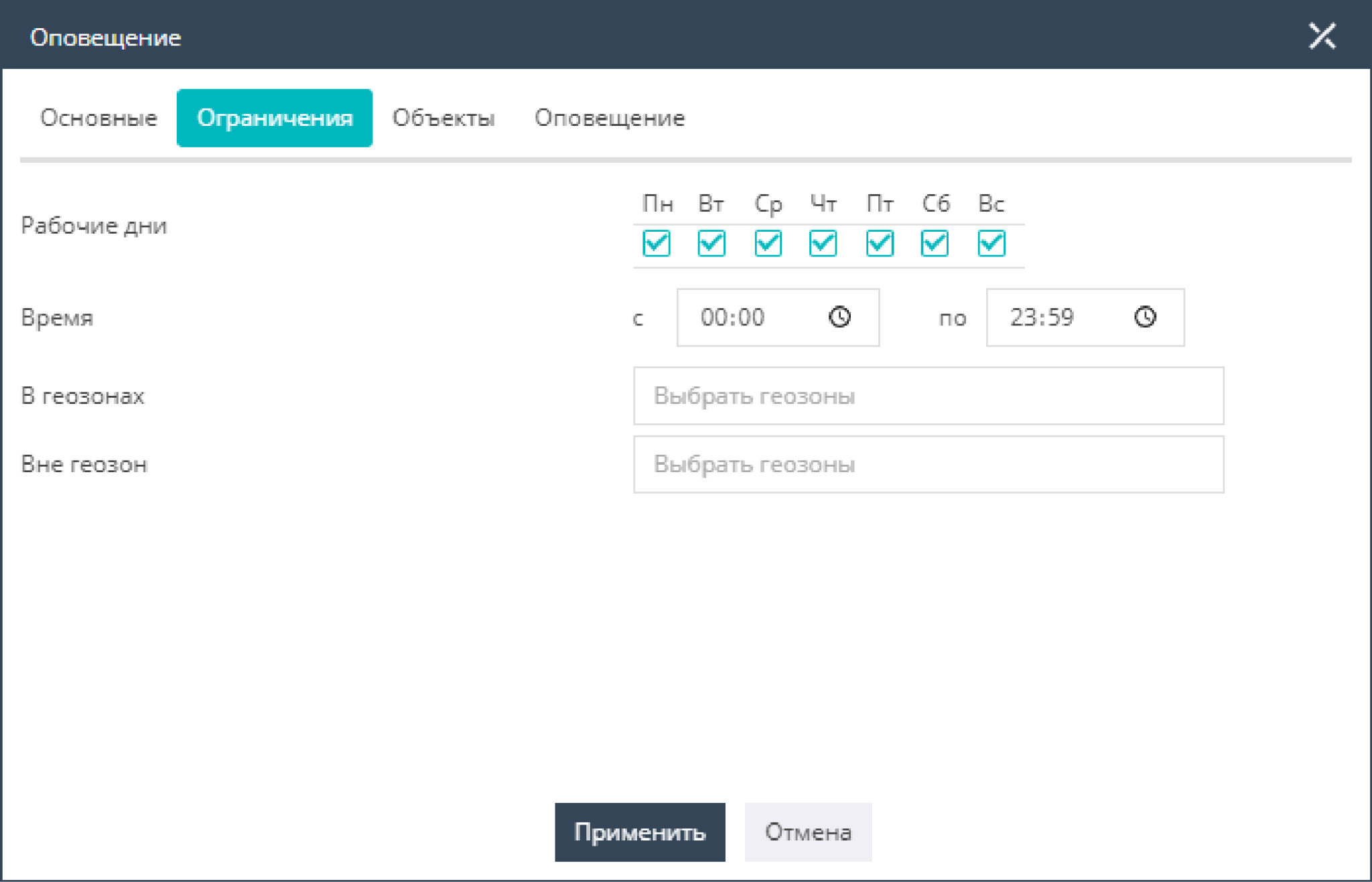
Restrictions on notification triggering by days of the week, time of day and hours, as well as activating the notification with geozone binding, are configured on the Restrictions tab.
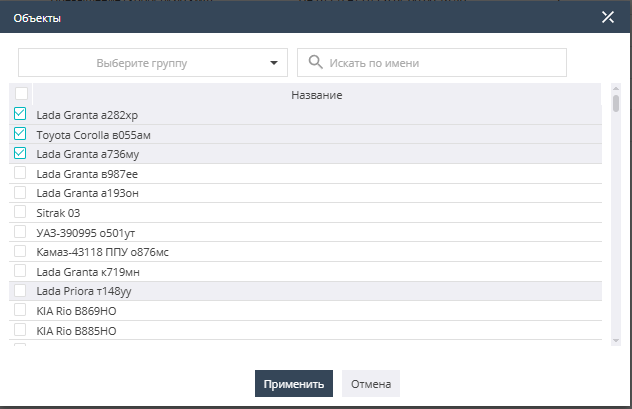
On the Objects tab, select the objects for which the notifications need to be set, by clicking the "+" icon and selecting them from the list, ticking the corresponding checkboxes.
On the Notifications tab, the parameters for sending notifications are set, in addition to the message in the system: an email, an http request, or a message in Telegram. There is also the ability to configure commands upon activation and deactivation of the notification.
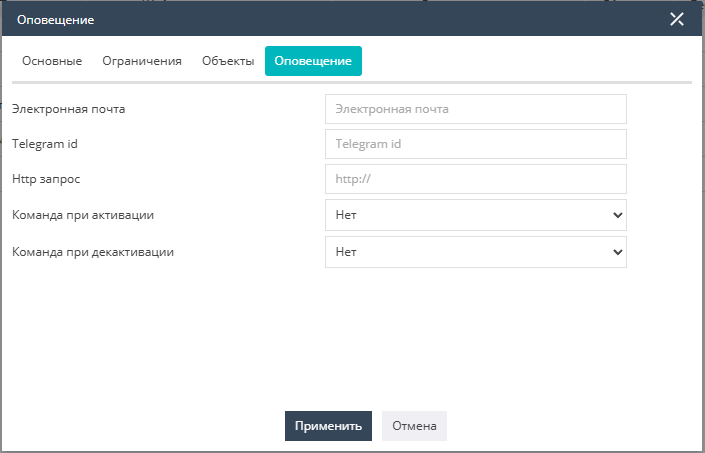
To create notifications and save the settings, you need to click Apply.
Editing already created notifications is done from the notifications list by clicking the icon located to the right of the notification. 
For quick creation of a notification by copying, click: Make a copy 
Deleting notifications is done by selecting a notification with the checkbox and clicking the trash bin opposite the notification to be deleted, or at the bottom of the screen below the general list (Delete selected).
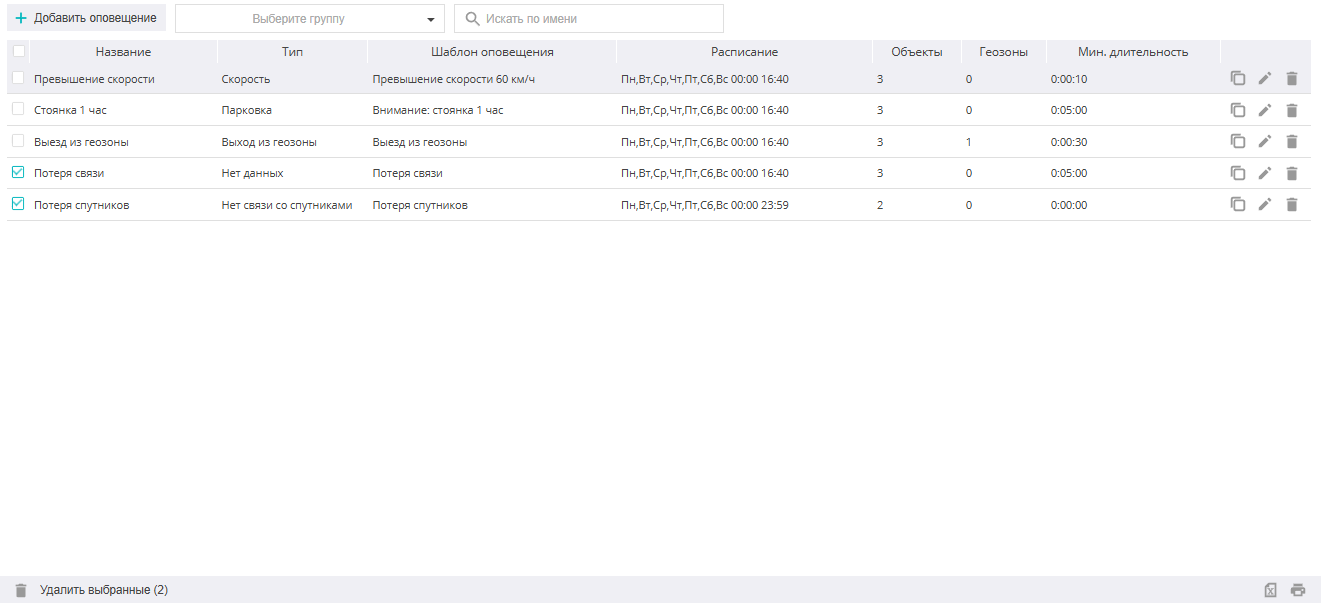
For convenient work with a large number of notifications, it is recommended to distribute them into groups and perform administration by selecting the necessary notification group, or to use the tool for searching notifications by name.