Geozones
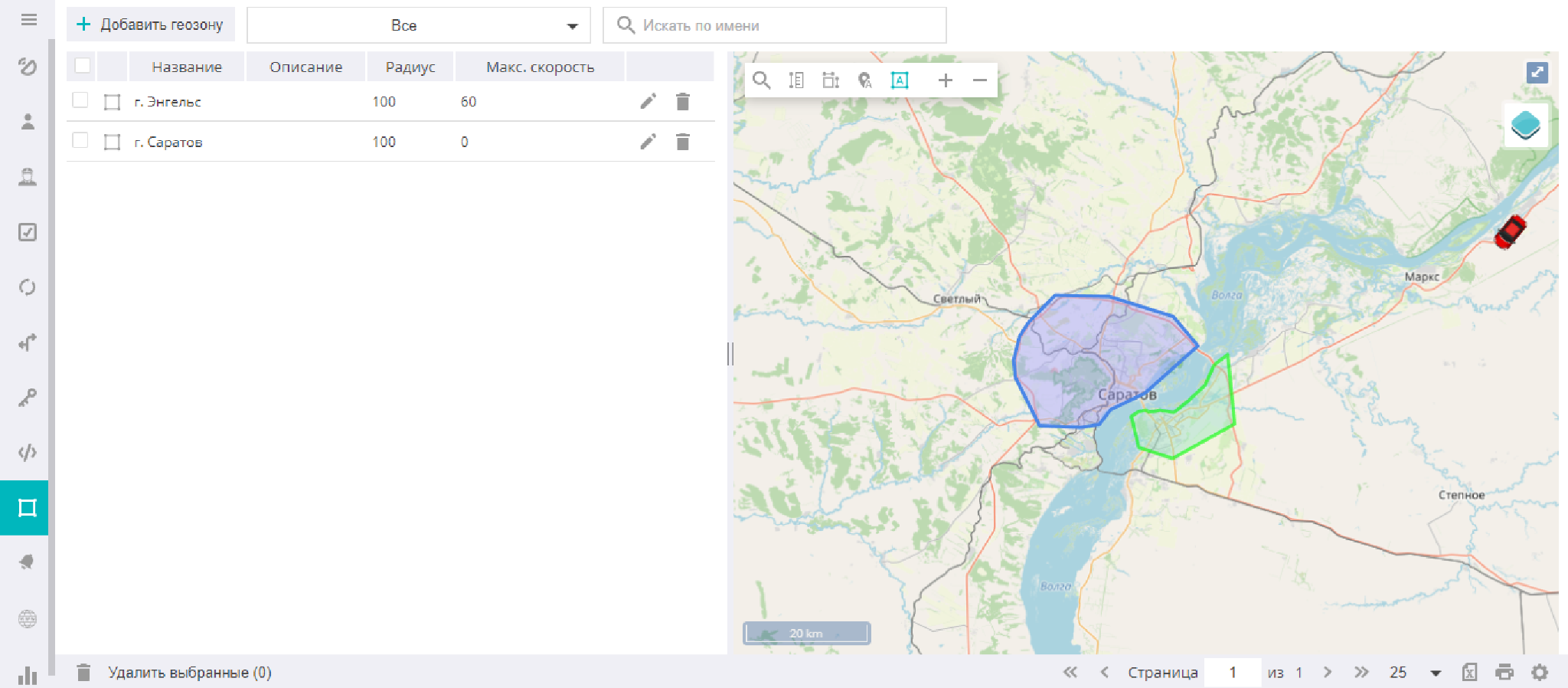
This section is intended for creating and editing geozones. It opens the list of geozones available to the user, as well as the geozone search and sorting boxes. When a geozone is selected, the map is centered on it.
Creating geozones
Adding a new geozone to the system begins with finding the desired area on the map. For this, you can use the search tool.

Then you need to click the icon.
In the window that opens, on the General tab, enter the necessary information (name, geozone description, maximum movement speed within it, geozone membership in a group, use in reports).
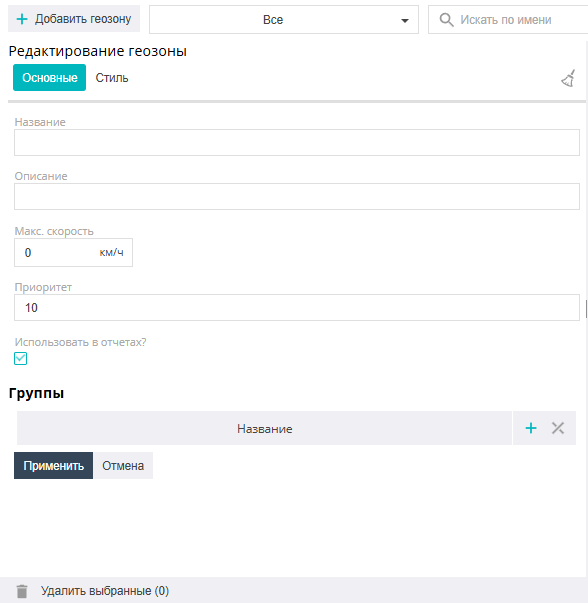

This icon allows you to erase the geozone from the map and start drawing it again.
On the Style tab, the type of geozone being created is selected: point, polyline, or polygon:
Point — a geographic area around a given point in the shape of a circle with an arbitrary radius (the radius and center of the circle are defined by the user).
Polygon — an area bounded by an arbitrary polygon with any number of vertices. Drawing the geozone outline is completed with a double click of the left mouse button.
Polyline — a sequence of points connected by segments into one continuous line. The polyline forms a corridor of a certain width, defined by the "radius" parameter. Drawing the geozone outline is completed with a double click of the left mouse button.
Here you can also set the style of drawing the geozone on the map: fill color and transparency, the color, width, style, and transparency of the geozone's outline line, the icon (for a Point-type geozone), and the outline line style.
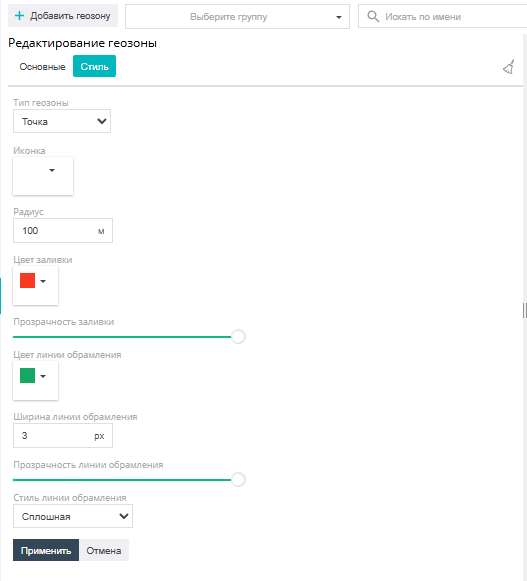
Creating a geozone is completed by clicking the "Apply" icon.
Editing and grouping geozones
Creating new groups for geozones and editing them is available in the filter by groups, by clicking the icon  . The group settings dialog allows you to change its name and the list of geozones included in it.
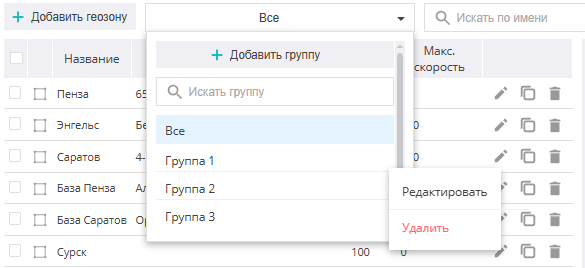

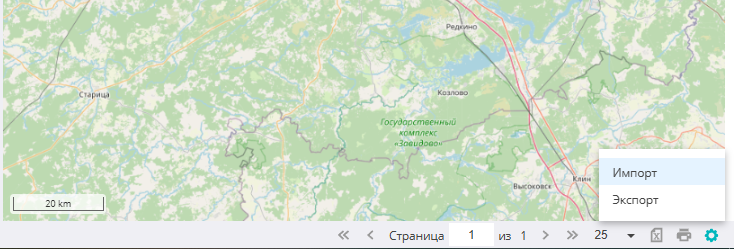
When you click the icon in the lower right part of the screen, an additional menu opens, where you can import or export geozones via a kml-format file.