Advanced settings
The system's Advanced settings menu opens on the Objects tab using the icon  in the Control Panel interface, in the lower right corner of the screen:

Object import
You can import objects into the GALAKTIKA system (including object settings, sensors with settings, formulas, calibrations, validators, as well as custom fields) that were previously saved in wlp or zip file formats. To do this, you need to open the Import dialog, select the file, specify whether the object needs to be recreated from scratch if it already exists in the system (or leave the checkbox unticked and update only the sensors), and click Apply.

A successful completion of the Import procedure will be a pop-up informational message with the procedure results on a green background. For example:

If the import completes with errors, they will be reflected in an informational message on a red background. For example:

Object export
To perform the object export (upload) procedure, you need to select the objects to be exported in the object list, then go and click Export. The system will create and save to the computer's memory a file with the export of the object/objects and their settings. A successful completion of the Export procedure is an informational message about the successful completion of the Export:

Set icons
In this section, you can configure icons for objects by selecting them from the icon library.

Data
The Data section is intended for analyzing the raw data coming from objects. It provides access to both the raw data coming from the devices, as well as daily statistics and calculations of driver sessions. The section is available for invocation from the system's Main menu or from the Control Panel under Advanced settings.
In the Data section, all data is grouped into 3 tabs, which display the corresponding information about the selected object over the selected time interval.
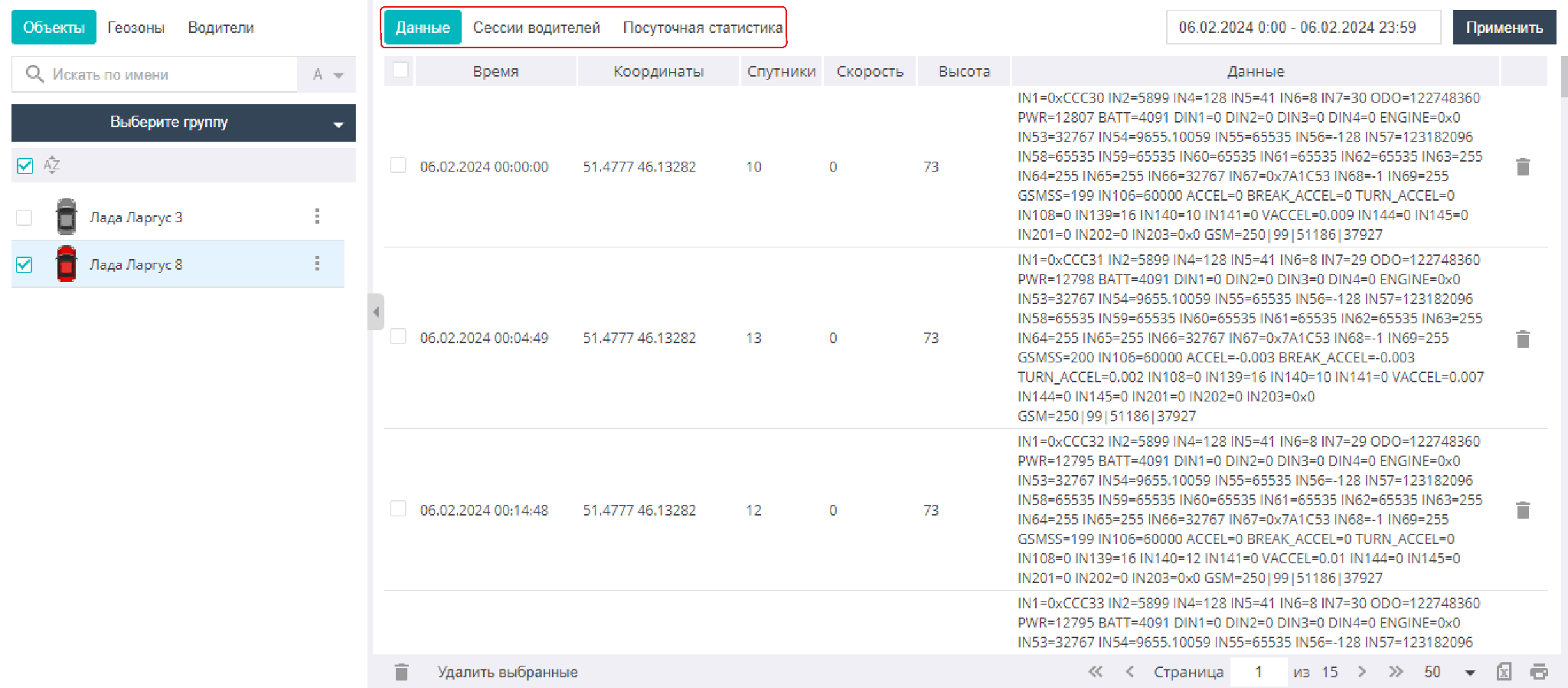
The Data tab contains navigation data and sensor data coming from the devices without filtering, smoothing, validation, etc.
The driver Sessions tab displays the statistics calculated by the system about driver trips on this object.
The Daily statistics tab presents statistics for the selected object, grouped by day: durations of movement and parking, mileages, durations of operation and idling, worked engine hours, fuel consumption, and refuelings.
Diagnostics
The Diagnostics section contains information about the state of the equipment of users' objects, their status, the time of receipt of the latest data, the state of the main sensors, etc. The section is intended to make it easier for the administrator and object owner to diagnose equipment and perform bulk monitoring of equipment health. The section is available for invocation from the object control panel or from the user control panel.
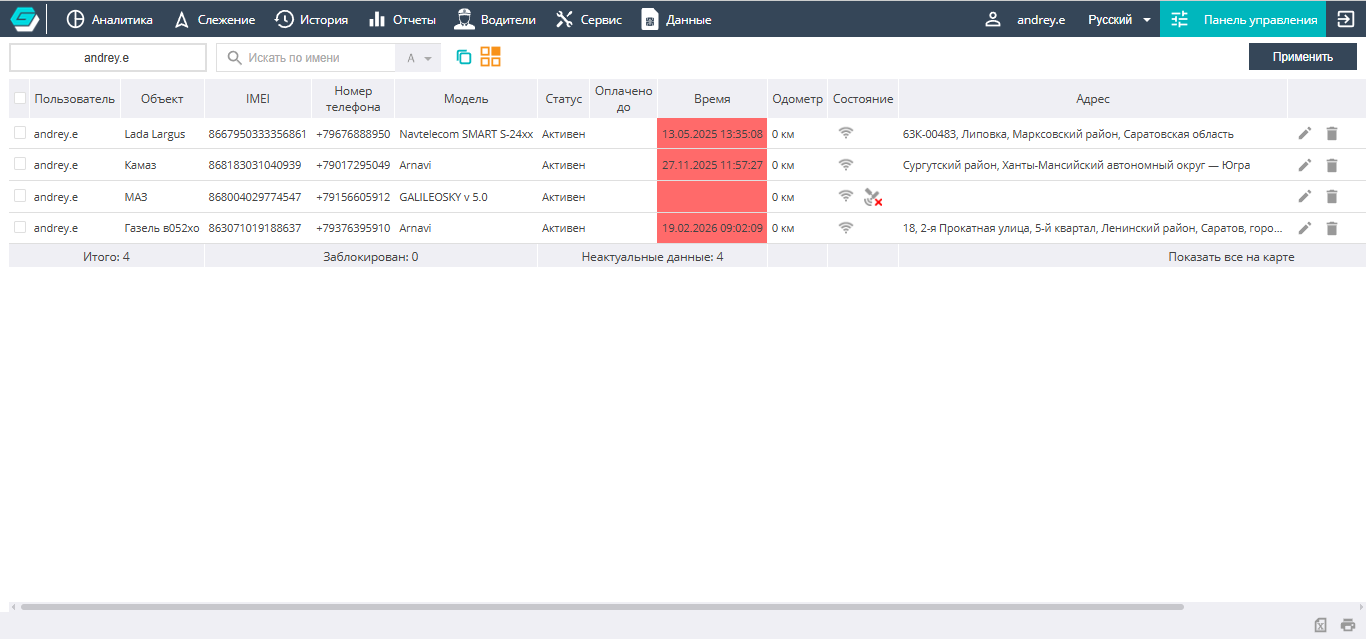

Above the list of objects there is a box for filtering data by object name and owner, as well as additional tools that allow managing object visibility. If necessary, objects can be edited and deleted directly from the general list using the corresponding icons.