Interface layout
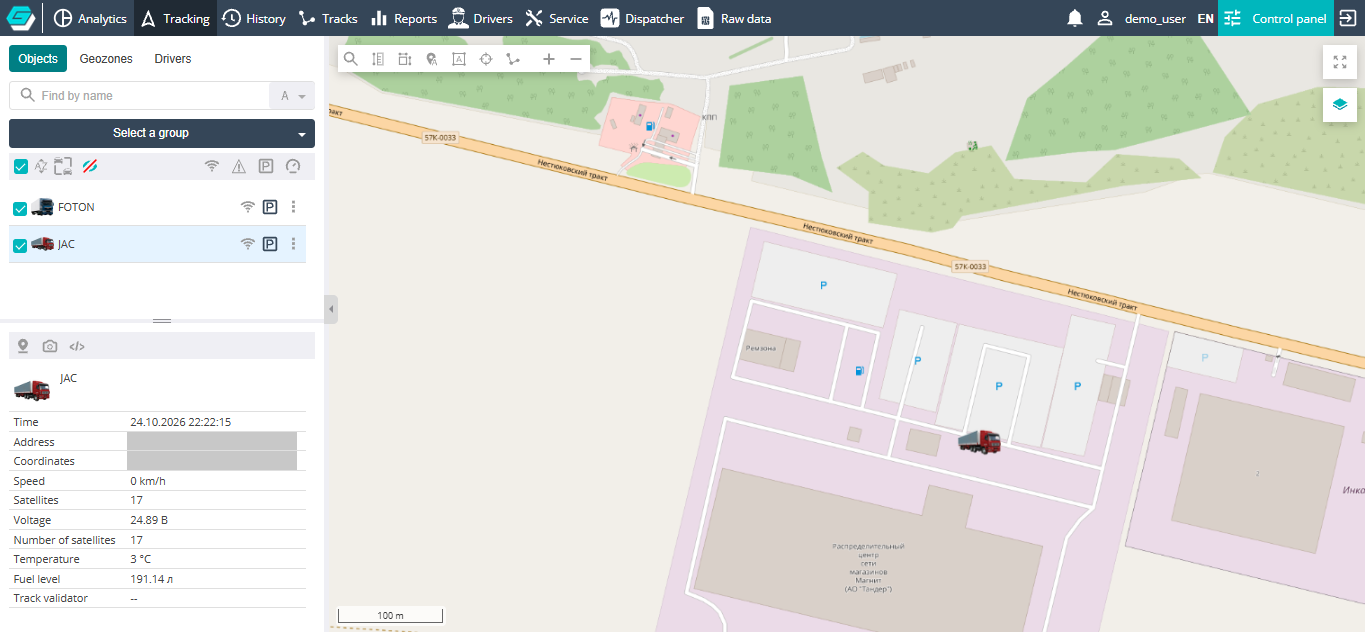
The main screen is laid out the same way in every section: the top bar with the main menu at the top, and the work area of the selected section below it. In sections with a map, the work area is split into the left panel with lists and the map, and in the "History" section the information panel is added under the map. The picture shows the "Tracking" section, which opens by default after signing in.
Top bar
On the left of the bar are the monitoring service provider's logo (set up via personalization) and the main menu. The menu items are the system sections:
- Analytics — key indicators and charts for objects and drivers over a period;
- Tracking — objects on the map in real time;
- History — the track, statistics and events of objects over a selected period;
- Tracks — building and comparing several tracks on one map;
- Reports — reports on objects;
- Drivers — statistics, rating, analytics and reports on drivers;
- Service — planning and tracking of object maintenance;
- Dispatcher — current sensor readings and object events as cards;
- Raw data — device packets, driver sessions and daily object statistics.
The menu shows only the sections that are enabled for the user and allowed by their access rights (see Roles and access rights).
On the right of the bar:

- Notifications (the bell) — opens the panel with the list of triggered events and alarms on objects. The red counter on the bell shows the number of events in the list (more than 9 — "9+"). Clicking an event selects the object; the panel header holds the choice of containers to receive notifications from, sound off and the Acknowledge all button;
- user name — opens the user profile window. If you are viewing the system as another user, their name is shown here, with yours in brackets;
- interface language (for example, EN) — a click opens the list of languages. Shown if the system has more than one language;
- Control panel — settings of objects, geozones, users and other directories (see Control Panel). Visible to users with the User, Integrator and Administrator roles;
- sign out — the rightmost button: ends the session and opens the sign-in page.
Left panel
The left panel is present in the "Tracking" and "History" sections. Its tabs:
- Objects — the list of monitored objects: search, group selection, check boxes for showing objects on the map, the sorting, grouping and state filter buttons. Each object row has connection and movement indicators and the ⋮ button with the actions menu;
- Geozones — the list of geozones and their display on the map;
- Drivers — the list of drivers.
Under the list is the card of the selected item: for an object, the time of the last message, address, coordinates, speed and sensor readings. Above the card are quick action buttons: show the object on the map, view photos from the device, send a command.
The border between the list and the card, like the right border of the panel, can be dragged with the mouse, and the panel itself can be collapsed with the button on its right border.
The tabs are described in detail in the "Tracking" section: Objects, Geozones, Drivers.
Map
The map shows the objects checked in the left panel, their movements and geozones. The map is present, in particular, in the "Tracking", "History" and "Tracks" sections.
- In the top-left corner is the toolbar: search on the map, distance and area measurement, object and geozone labels, zoom. In the "Tracking" section it also has following the selected object and object tails, in the "History" section — the Show all tracks toggle.
- In the top-right corner are the full-screen and map layer buttons.
- In the bottom-left corner is the scale bar.
- In the "History" section, the bottom-right corner holds the track playback panel and the toggles for what to show on the track (parkings, refuelings, events, etc.).
Hovering over an object shows a pop-up window with its data. All map tools are described on the Map page.
Information panel
The information panel is present only in the "History" section and is located under the map:
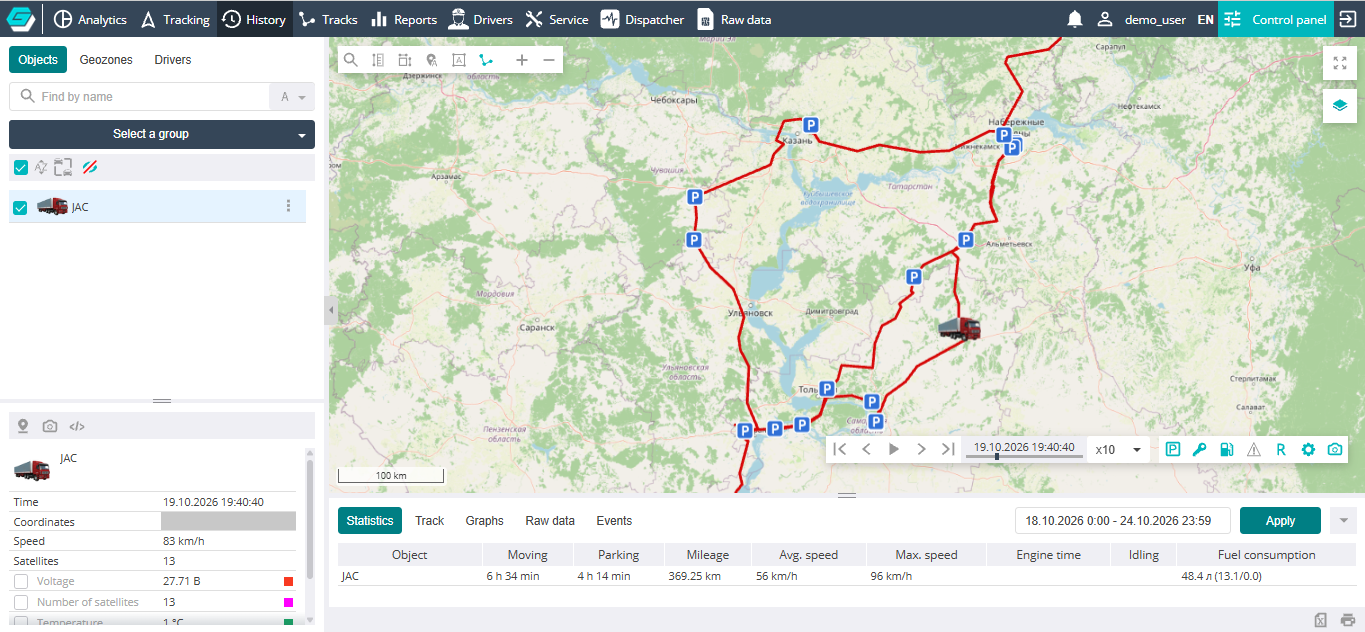
Above the table are the tabs, the period field, the Apply button and the arrow button that collapses the panel (clicking it again expands it). The border between the map and the panel can be dragged with the mouse. The panel tabs:
- Statistics — summary figures for objects: moving and parking time, mileage, speed, engine hours, idling, fuel consumption. The tab is shown if the user has the "Reports" section;
- Track — movements and parkings;
- Graphs — object sensor charts together with the track;
- Raw data — sensor data of the selected object;
- Events — triggered events and alarms.
In the bottom-right corner are the buttons for exporting the table to Excel and printing.