Drivers
The Drivers tab shows the list of the company's drivers. Its layout is close to the Geozones tab: at the top — a list with search and a filter, at the bottom — the card of the selected driver.
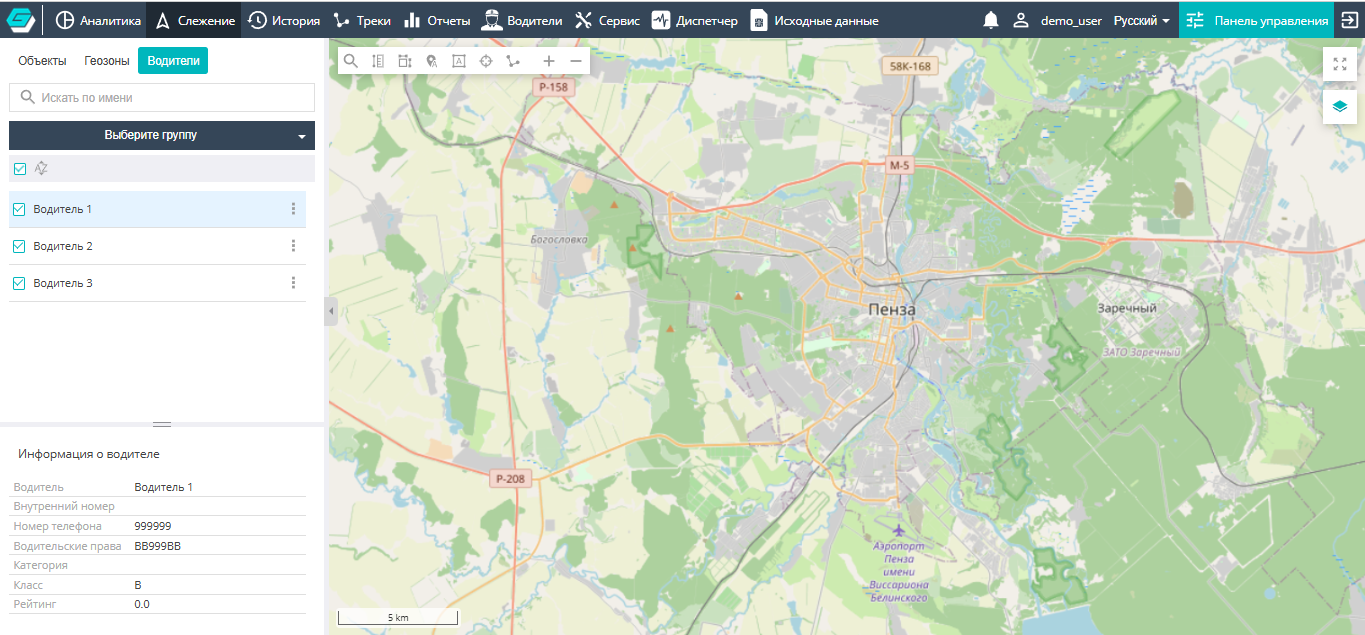
Search and filtering
- Find by name — the box above the list filters drivers by name as you type. Several comma-separated values, exclusions ("!") and masks ("*", "?") are supported — see Searching in lists.
- Group filter — a drop-down list with its own "Group search" box limits the list to the selected groups. Drivers outside the selected groups are not only hidden but also unticked.
Toolbar above the list
The checkbox at the start of the toolbar ticks or clears all drivers left in the list after the search and group filter — on all pages.
| Icon | Action |
|---|---|
 | Sorting order — when on, the list is sorted alphabetically (A→Z); when off, drivers are shown unsorted |
Driver row
Each row contains a checkbox, the driver's name, below it — the comment, if one is set, and the ⋮ context menu button. A driver can be selected and their card opened only if the driver is ticked. Cleared ticks, the search text and the selected groups are remembered in this browser.
Driver context menu
The menu is opened with the ⋮ button in the driver row:
- Show on the map — select the driver and open their card (the same as clicking the row); the map does not change;
- Edit — open the driver card for editing (see Drivers in the Control panel). The item is visible only to users with the edit right.
Driver card
When a driver is selected, the "Driver information" block is shown below the list:
- Driver — the name;
- Internal ID;
- Phone №;
- Driver licence;
- Category;
- Class;
- Rating.
List navigation
The list is split into pages of 250 rows. If there are more than 250 drivers, page navigation appears at the bottom of the panel.