Geozones
The Geozones tab shows the list of the company's geographic zones and controls their display on the map. Geozones are used to control entry and exit, to limit speed on a section and in reports. When a geozone is selected, the map centers on it (the zoom level does not change) and its card is shown below the list. Only a ticked geozone can be selected.
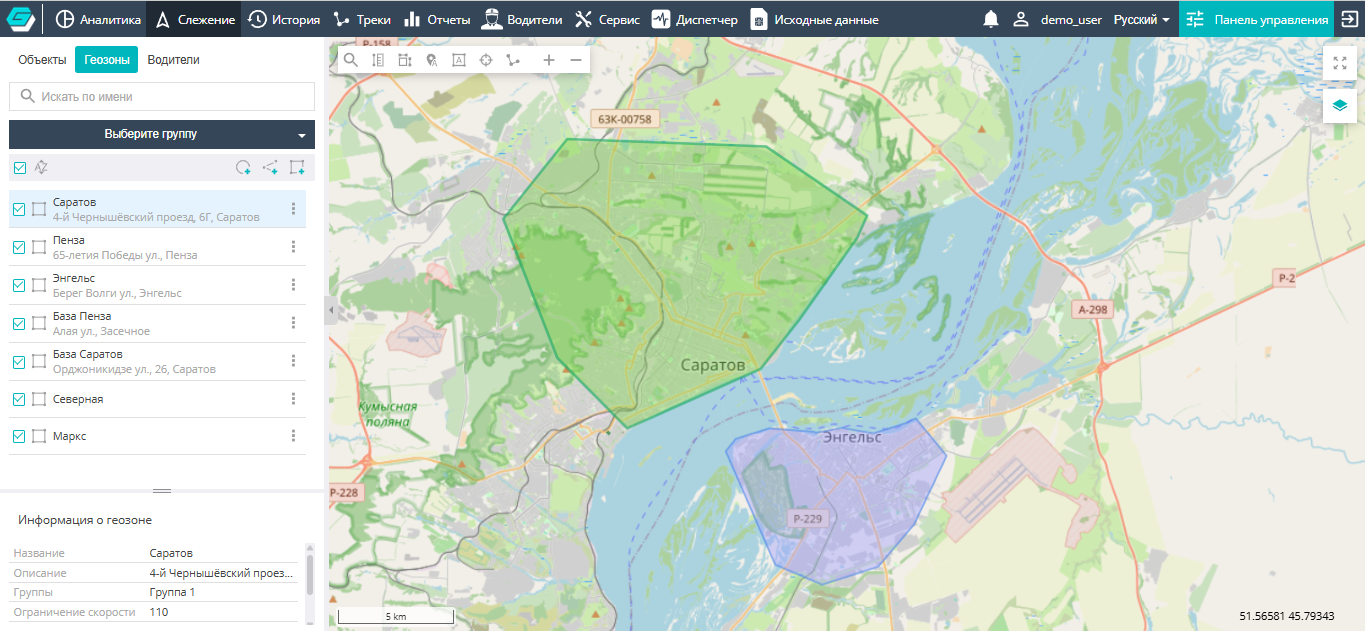
Search and filtering
- Find by name — the box above the list filters geozones by name as you type. Several comma-separated values, exclusions ("!") and masks ("*", "?") are supported — see Searching in lists.
- Group filter — a drop-down list with its own "Group search" box keeps only the geozones of the selected groups in the list. Geozones outside the selected groups are not only hidden from the list but also switched off — they disappear from the map.
The search text, selected groups, cleared ticks and the selected geozone are remembered in this browser.
Toolbar above the list
| Icon | Action |
|---|---|
 | Sorting order — when on, the list is sorted alphabetically (A→Z); when off, geozones are shown unsorted |
 | Add geozone as a point |
 | Add geozone as a line (route) |
 | Add geozone as a polygon (area) |
The add buttons are visible only to users who are allowed to create geozones: integrators, administrators and users who have been granted this right in at least one container. For everyone else the tab is view-only.
Geozone row and display on the map
A geozone row shows the icon of its type (point, line or polygon), its name and, below it, the geozone description, if one is set.
The checkbox to the left of each geozone shows or hides it on the map. The checkbox in the list header ticks or clears all geozones left in the list after the search and group filter — on all pages. Geozone labels on the map are switched on by a separate button on the map itself.
Creating a geozone
- Press the button for the required geozone type on the toolbar above the list.
- Draw the geozone on the map: for a point, click the required place; for a line or a polygon, click the vertices one after another and finish drawing with a double click.
- In the window that opens, set the geozone parameters and save it. The geozone parameters are described in Geozones in the Control panel.
Geozone context menu
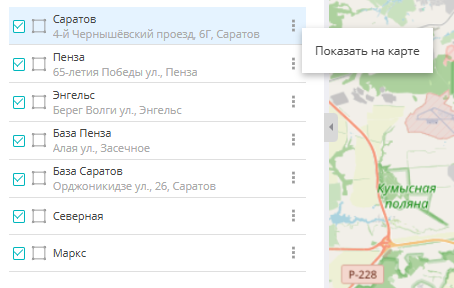
The menu is opened with the ⋮ button in the geozone row and contains one item:
- Show on the map — select the geozone and center the map on it (the same as clicking the row).
Geozone card
When a geozone is selected, the "Geozone information" block is shown below the list:

- Name;
- Description;
- Groups the geozone belongs to, or "No";
- Speed limit — the threshold for speeding control inside the zone, in the user's speed units;
- Type of the zone — "Point", "Polyline" or "Polygon";
- Events — which events the zone generates: "Enter in geozone", "Leave geozone", "All" or none (the field is empty);
- Use in reports — "Yes" or "No": whether the geozone takes part in reports.
List navigation
The list is split into pages of 250 rows. If there are more than 250 geozones, page navigation appears at the bottom of the panel.