Map
The map takes the right area of the Tracking section and shows the current position of the objects ticked on the Objects tab and the geozones ticked on the Geozones tab. Object positions are updated automatically.
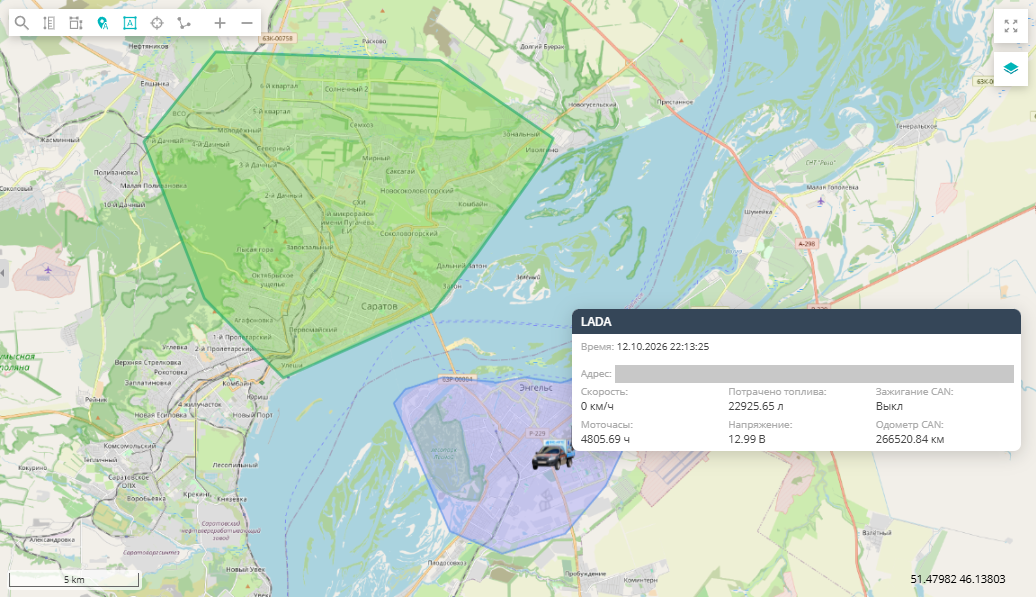
Objects on the map
- Hovering the mouse pointer over an object opens a popup window with its data: the name, the time of the last message, the address and the current sensor readings (ignition, supply voltage, etc.). The window closes shortly after the pointer leaves the object and stays open while the pointer is over the window itself. See Object popup window.
- Clicking an object selects it in the object list, opens its card and centers the map on the object.
- If the user has more than 10 objects, objects located close to each other are merged at small scales into a cluster showing the number of objects. When you zoom in, the cluster splits into separate objects. Hovering over a cluster shows the list of names of its objects. The cluster color depends on the number of objects: blue — fewer than 10, green — from 10, red — from 50, pink — from 100, purple — from 500. How many objects must be close together to form a cluster is set by the user setting "Group map objects from" (2 by default), see Users.
- If the direction arrow is enabled for an object, it shows where the object is heading. A semi-transparent circle around the selected object shows the accuracy of its position.
Scale bar and coordinates
The lower left corner of the map holds the scale bar: it shows what distance on the ground a segment on the screen corresponds to and changes with the zoom level. The lower right corner shows the coordinates (latitude and longitude) of the point under the mouse pointer.
Toolbar
The toolbar is located in the upper left part of the map. The buttons are switched on and off by pressing them again. The display toggles (names, tail, watching) and the search row work independently of each other, while of the measurement, route and point information tools only one can be on at a time:
| Icon | Action |
|---|---|
 | Search on the map — opens the search row (see below) |
 | Distance measurement — measure the distance between points (see below) |
 | Area measurement — measure the area of a plot (see below) |
 | Show objects name — object labels right on the map; for a moving object the speed is added to its name |
 | Show geozones name — geozone labels on the map |
 | Watch for selected — the map moves by itself so that the selected object stays in view while it moves |
 | Show objects tail — a line of the path traveled over the last 3 minutes is drawn behind each object on the map. The line is built from the points received after the button is switched on, so right after switching it on there is no line |
  | Zoom — zoom the map in and out (the mouse wheel works too) |
The state of the "Show objects name", "Show geozones name", "Watch for selected" and "Show objects tail" toggles, as well as the map position, zoom level and the selected map layer, is remembered and kept for the next login.
Search row
The "Search on the map" button opens an extra row below the toolbar; pressing it again hides the row. A route or point information tool that is on stays on:

| Icon | Action |
|---|---|
 | Build a route — a route along roads between two points with its length calculated |
 | Point information — the coordinates and address of any point on the map |
Searching for a place. Enter an address or a name in the "Search on the map" box and press the "Search" button (the Enter key does not start the search). A marker labeled with the text you entered appears at the first place found. If nothing is found, no marker appears.
Route:
- Press the "Build a route" button.
- Click the map at the starting point — a marker appears there; hovering over it shows the "Start" label.
- Click the end point — the system lays a route along roads (a yellow line) and shows a "Finish" window with the route length. The "Start" marker is then removed.
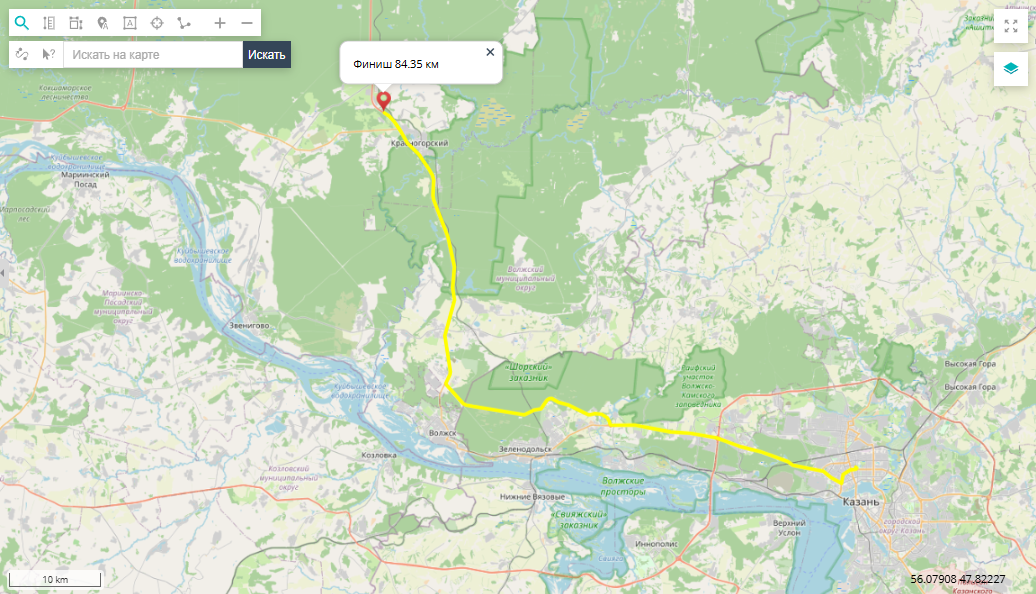
The route stays on the map until you close the "Finish" window with its cross, press "Search" or switch on one of the tools: measurement, route or point information.
Point information: press the "Point information" button and click the map — a marker with the point's coordinates and address appears at that place. If the point is inside a geozone of up to 20 km², the geozone name is shown instead of the address.
After a route is built or point information is received, the tool switches off by itself; to repeat, press the button again. Only one map tool can be on at a time — switching on the route, point information or a measurement switches the others off.
Measuring distance and area
The "Distance measurement" and "Area measurement" tools work the same way:
- Switch the tool on with its button on the toolbar.
- Click the map to place points. The label next to the pointer shows the length of the line or the area of the plot.
- Finish the measurement with a double click.
The finished measurement stays on the map, and all its points are marked with circles. The label with the length or area keeps following the mouse pointer. While a measurement is on the map, object popup windows do not appear on hover. The measurement can be adjusted:
- move a point — drag it with the mouse;
- add a point — press the line between points and drag: a new point appears at that place;
- delete a point — click it while holding Shift. A line keeps at least two points, a plot at least three.
The length or area is recalculated right away while editing. Only one measurement is shown on the map: clicking an empty place on the map starts a new one and deletes the previous one. Pressing the tool button again switches the tool off and removes the measurement from the map.
Map layer and full-screen mode
The upper right corner of the map holds:
| Icon | Action |
|---|---|
 | Expand the map to full screen; pressing it again or the Esc key returns the normal view |
 | Choosing the map layer — the list of available maps (Google, Yandex, Bing, OSM, etc.) is defined by the administrator. Besides map layers, the list may contain additional overlays (for example, traffic) that are switched on with checkboxes on top of the map layer. The list opens and closes by clicking the button and closes by itself after a map layer is chosen |