Object popup window
The object popup window shows the data of a monitored object at a specific moment in time: where it was, how fast it was moving and what values its sensors reported. The window opens when you hover the mouse pointer and looks the same on the map and on the charts.
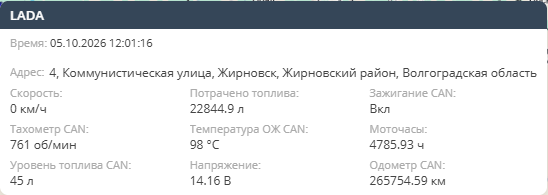
Where the window appears
| Section | What to hover over |
|---|---|
| Tracking | the object marker on the map |
| History — map | the object marker or the track line |
| History — Charts | any point of the charts area |
| Tracks | the object marker; the track line — only when "Show track points" is enabled on the map toolbar |
| Reports — Charts | any point of the charts area |
The window follows the pointer and closes by itself as soon as the pointer leaves the object, the track line or the charts area. The window has no close button. You can move the pointer onto the window itself — while the pointer is over the window, it stays open.
Window content
- Header — the object name;
- Time — the moment the data refers to: on the "Tracking" map — the time of the last message, on the "History" map and in "Tracks" — the time of the track point, on the charts — the time under the pointer;
- Address — the object location at that moment;
- Speed, Altitude, Satellites — taken from the track point, so they are shown on the "History" map, in "Tracks" and on the charts, but not on the "Tracking" map; not shown for stationary objects and generators;
- sensor values of the object at that moment — except sensors hidden in the object settings.
"Parameters" tab
If the "Show raw data in popup" setting is enabled for the user (the "Interface" tab of the user dialog), the window gets two tabs:
- Main — the content described above;
- Parameters — the raw parameters of the nearest data packet from the device as "name: value".
The tabs appear only if there is a packet with parameters within 5 minutes of the selected moment. The "Parameters" tab is not shown in the "Tracks" section.
Window on the charts
On the charts the window appears when you hover over the charts area, not only over a chart line. The time is determined by the horizontal position of the pointer. If the charts show several objects, the window is shown for the object whose chart is vertically closest to the pointer. The window is not shown for moments in the future.
In the upper right corner of the charts area, above the "+" and "−" zoom buttons, there is a button that turns the window on and off:
 — the window is on (default);
 — the window is off,
hovering over the charts does not open it.
— the window is off,
hovering over the charts does not open it.
The selected state is remembered and kept the next time the charts are opened.