User profile. Switching between users
Clicking the user name in the top right corner opens the Users window with two tabs:
- Users — the list of accounts you can view the system as;
- My profile — personal settings and password change.
The Users tab is shown if the list contains anyone besides you, or if your role is Integrator or Administrator. Otherwise the window opens directly on the My profile tab.
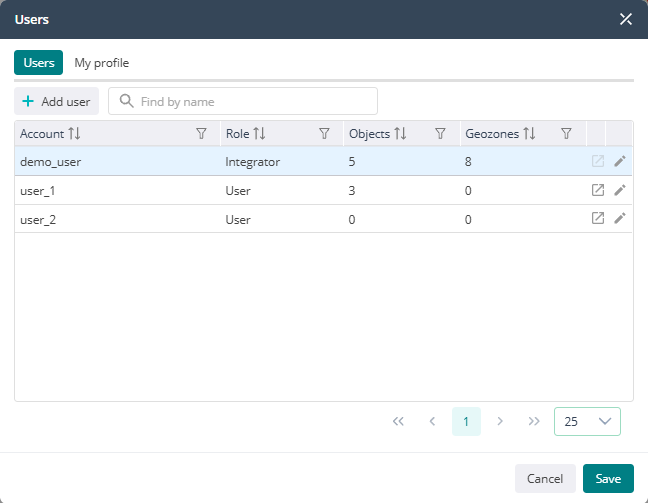
Users tab
The list contains users of your company and all its child companies whose rights do not exceed yours. Users with wider rights (for example, administrators for an integrator) are not listed. Your own account is always the first row, whatever the sorting.
Above the table:
- the Add user button — opens the user creation window. Visible to those who have the Users section in the control panel;
- the Find by name field — search rules are described in Search in lists.
Table columns:
- Account — name (login);
- Role — the user role;
- Objects and Geozones — how many objects and geozones are available to the user.
The table can be sorted and filtered by every column, and the column width can be changed by dragging the header border. At the bottom are page switching and the rows-per-page selector. Sorting, filters and the number of rows are remembered in this browser.
Row actions:
| Icon | Action |
|---|---|
| — | Click on a row — view the system as this user (see below) |
 | Open in a new tab — the same, but in a new browser tab; the current tab does not change. Unavailable in the row of the user you are currently viewing the system as |
 | Edit — opens the user editing window. Available to integrators and administrators |
Viewing the system as another user
Clicking a user's row reloads the page, and the system opens on their behalf: their objects, geozones and other data are shown. The top right corner shows this user's name, with yours in brackets.
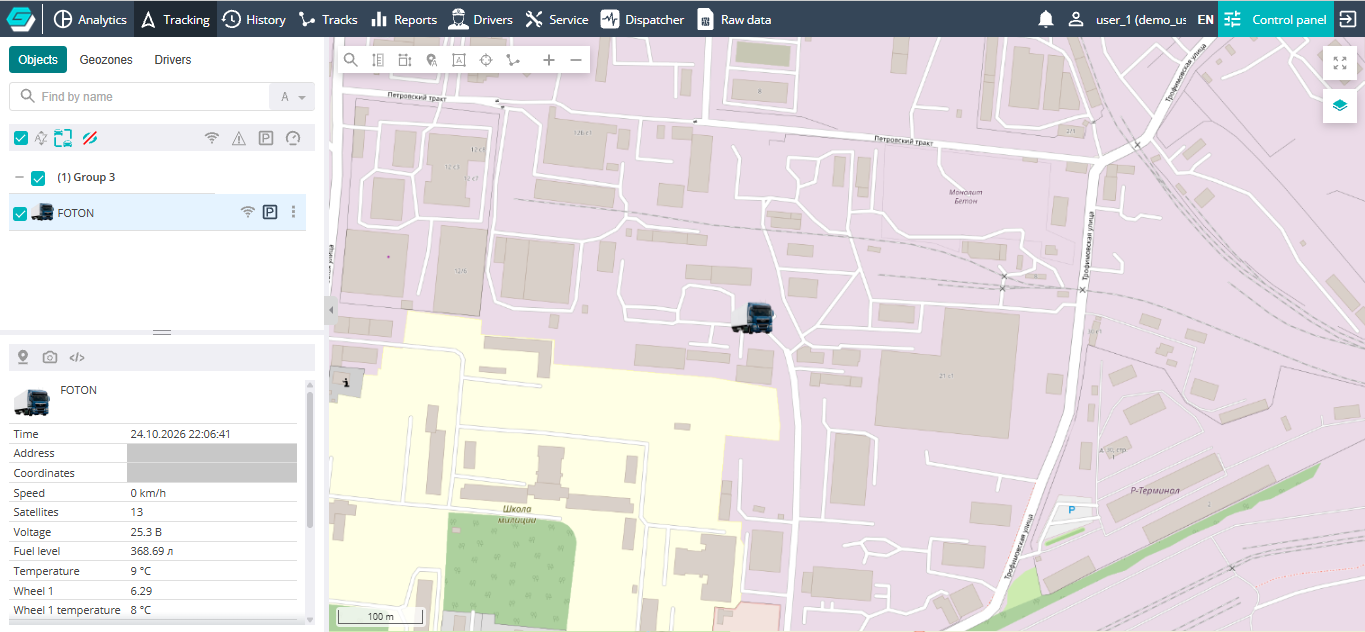
While you view the system as another user:
- their rights and available sections apply, but never more than your own rights;
- the Users tab keeps your list — you can go straight to another user from it;
- users cannot be edited from this window;
- all changes are recorded in the action journal under your name.
To return to yourself, open the window and click your own row — it is the first in the list.
The selected user is remembered only in the current browser tab: it survives a page refresh, and another tab can at the same time show the system as a different user or as yourself. Logging out resets the selection.
My profile tab
This tab sets up the profile of the current user. If you are viewing the system as another user, it shows their profile.
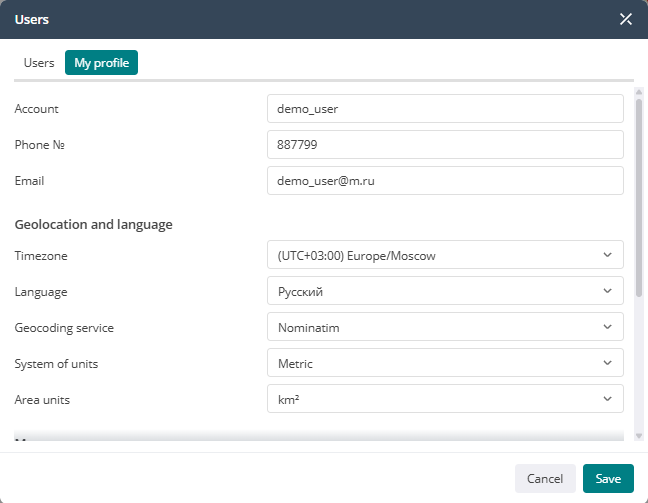
Basic data:
- Account and Email — read-only, changed in the control panel;
- Phone №.
Geolocation and language:
- Timezone — all dates and times in the system are shown in it, so it is important to set it correctly;
- Language — the interface language;
- Geocoding service — the service that resolves coordinates to addresses;
- System of units — metric or imperial (feet/miles);
- Area units — km² or hectares.
Map:
- Group map objects from — how many nearby objects on the map are merged into a cluster. At least 2.
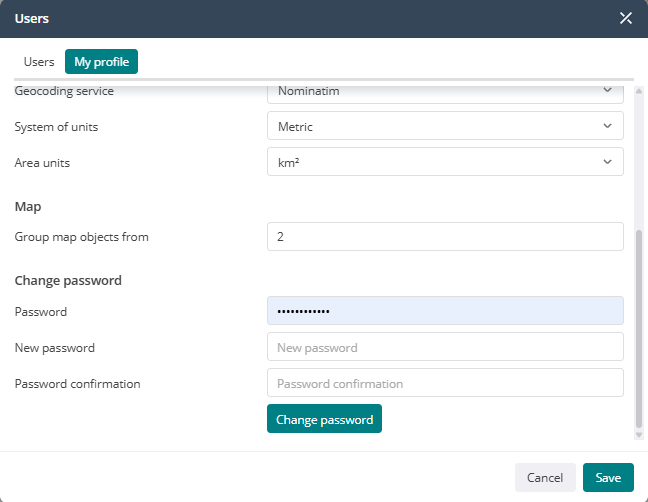
Change password. Enter the current Password, the New password and the Password confirmation, then click the Change password button. The password changes at once — the message "Your password has been changed" appears, and there is no need to click Save. This block is hidden while you view the system as another user.
Other profile changes are saved with the Save button clicked on the My profile tab. Cancel closes the window without saving. On the Users tab both buttons just close the window, so if you switched there after editing the profile, the changes are not saved.