Objects
The Objects tab displays the list of monitored objects of the company and is intended for observing their current status and location in real time. For each object, search, status filtering, grouping, context commands, and a detailed card with the latest data are available.
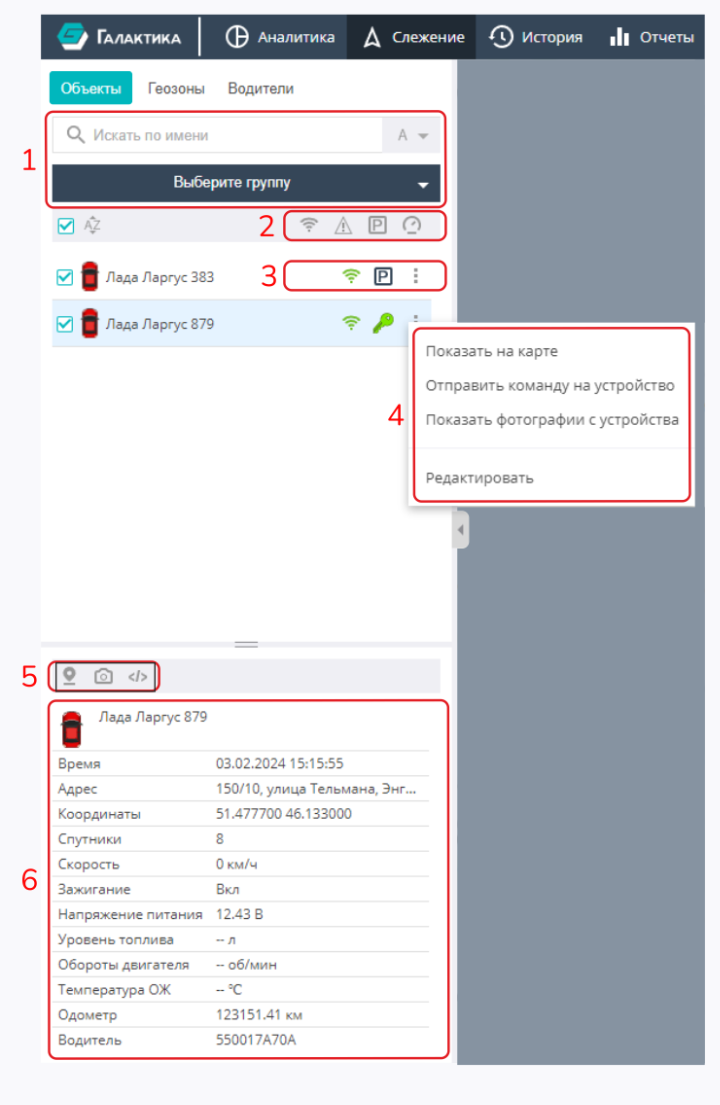
The illustration highlights: 1 — search and grouping; 2 — quick status filters; 3 — object state indicators; 4 — context menu; 5 — quick-action buttons; 6 — object card.
Object search
The search box filters the list as you type. The search type is chosen in the drop-down list to the right of the box:
- By name — by the object's name;
- By IMEI/ID — by the device identifier;
- By phone number — by the tracker's SIM card number;
- By device type — by the equipment model.
List display modes
Above the list there are view controls:
- Sort order — toggles the list sorting (A→Z / Z→A).
- Grouping — displays objects as a single list or grouped by groups. When grouping is enabled, a filter by groups with its own search is available.
- Hide unselected — keep only the objects marked with checkboxes in the list.

Quick status filters
The Tracking section additionally provides quick filters by the current state of objects (each can be enabled independently):
 Online only — objects that are currently communicating;
 With alarms only — objects with active alarms;
 Parked only — objects that are not moving;
 Moving only — objects with a non-zero speed.
Object state indicators
Icons showing the current state are displayed next to each object's name:
- connected to the server (online);
 not connected to the server (offline);
 the object is moving — the icon changes according to the movement speed;
 the object is stationary with the engine running;
 the object is parked / not moving;
- (LBS) the object's location is fixed using a mobile network cell tower;
 the object's current location is not fixed.
The set of possible states depends on the equipment installed on the object.
Object context menu
A context menu is available for an object in the list:
- Show on the map — center the map on the object;
- Send command to device — execute a command (photo, engine blocking, settings change, etc.) — the set of commands depends on the equipment;
- Show photos from device — request snapshots from the connected camera;
- Edit — open the object settings (available if you have edit permissions, see Objects in the Control panel);
- Synchronize keys — update the object's keys and tags.
The "Edit" and "Synchronize keys" items are available only to users with edit permissions for the corresponding objects.
Quick-action buttons
Above the card of the selected object there are quick-action buttons:
 show the object on the map;
 show photo from the device;
 send a command to the device.
Object card
When an object is selected, a card with its latest data is shown below the list:
- icon, name and comment of the object;
- time of the last message;
- address (determined by coordinates);
- coordinates;
- speed;
- number of satellites;
- readings of the connected sensors (ignition, supply voltage, fuel level, engine RPM, temperature, odometer, etc.) — the set depends on the equipment.
List navigation
A long list of objects is split into pages — pagination at the bottom of the panel is used to move between them.