Drivers
The Drivers tab displays the list of the company's drivers. In its structure it is similar to the Geozones tab: the list with search and filter is on top, and the card of the selected driver is below.
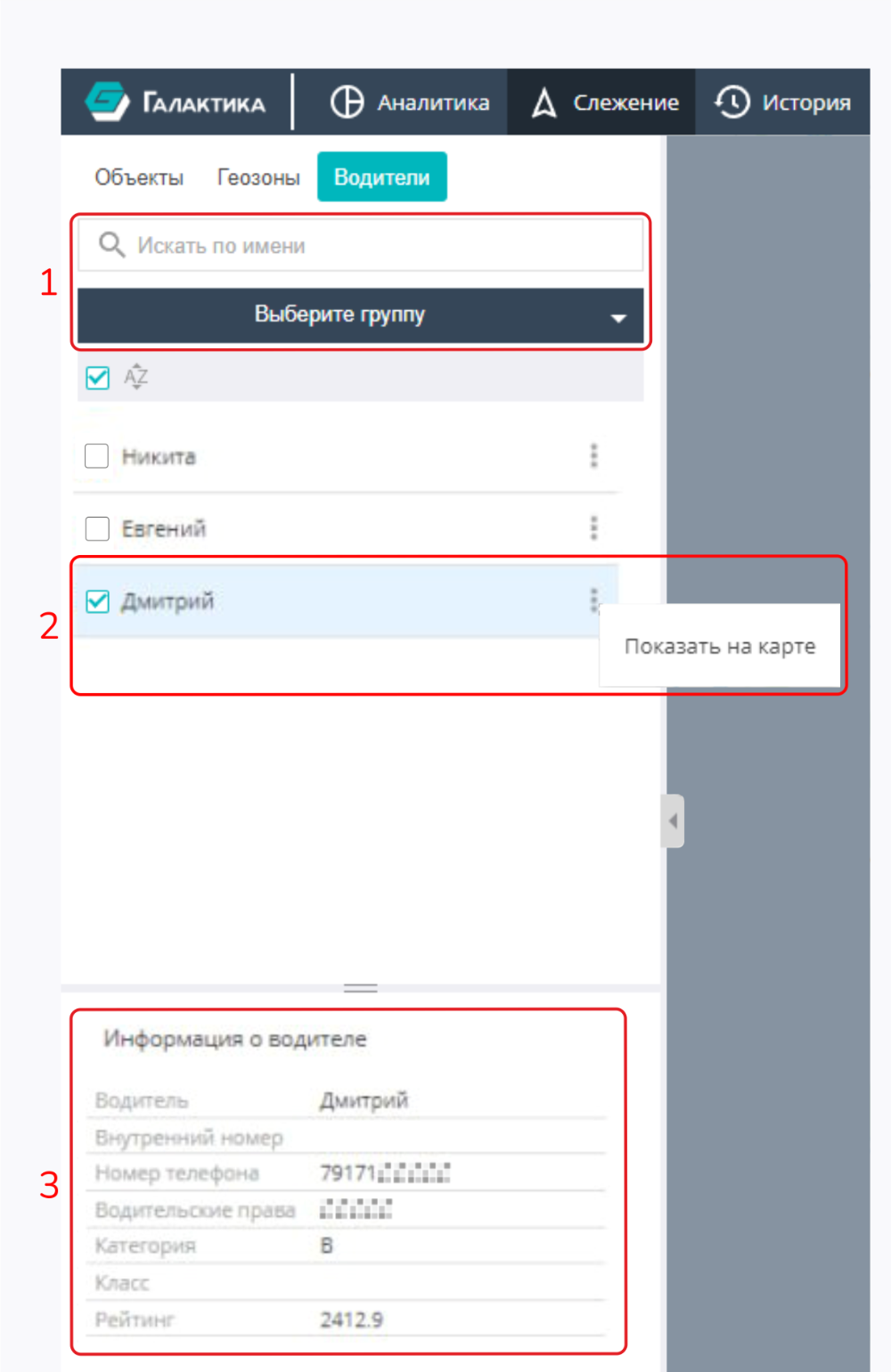
The illustration highlights: 1 — search by name and group selection; 2 — driver context menu; 3 — card of the selected driver.
Search and filtering
- Search by name — the box above the list filters drivers by name as you type.
- Filter by groups — a drop-down list with its own search box limits the list to the selected groups.
- Sorting — a toggle for the list order (A→Z / Z→A).
Driver context menu
A context menu is available for a driver in the list:
- Show on the map — show the current position of the object the driver is assigned to;
- Edit — open the driver card (available only if you have edit permissions, see Drivers in the Control panel).
Driver card
When a driver is selected, their card is shown below the list with the following fields:
- Driver — name;
- Internal ID;
- Phone №;
- Driver licence;
- Category;
- Class;
- Rating.
If the Objects tab is not available to the user, the driver card additionally shows a block with the latest data of the linked object: the object icon and name, the time of the last message, coordinates, speed, and the number of satellites.
List navigation
A long list of drivers is split into pages — pagination at the bottom of the panel is used to move between them.